How to Use a Tampermonkey Script on a Website?

If you frequently use the same website and wish it had a particular feature, a Tampermonkey script may help. Tampermonkey is a popular userscript manager that allows you to install and run custom JavaScript code on websites. These scripts can modify page layouts, automate repetitive actions, add new buttons or functions, and customize how certain websites behave.
However, using userscripts can be confusing if you are new to browser extensions or JavaScript. You may also encounter problems such as a script not appearing, failing to run, or working on one website but not another.
In this guide, we’ll explain what Tampermonkey is, whether it is safe, how to use a Tampermonkey script on a website, and how to troubleshoot common problems when Tampermonkey isn’t working.
1. What Is Tampermonkey?
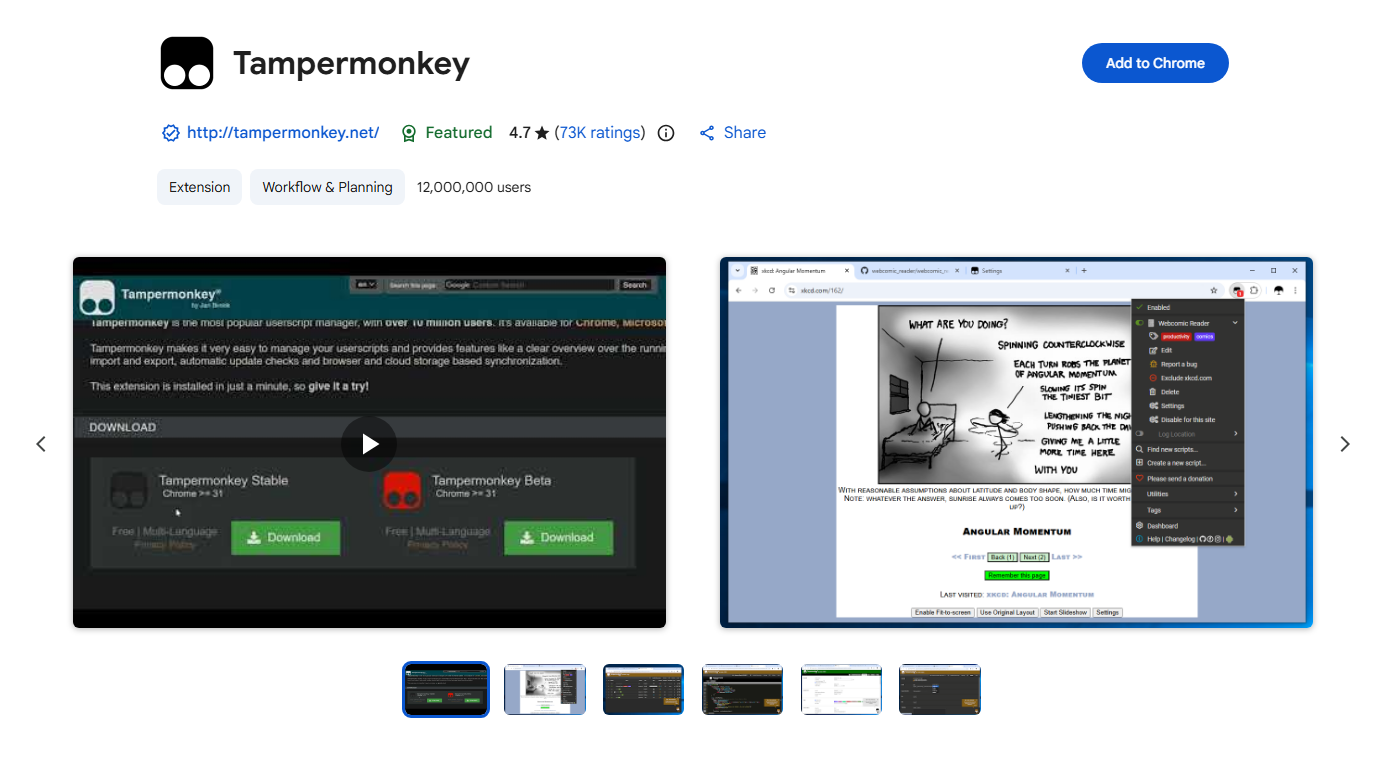
Tampermonkey is a userscript manager available for popular browsers. It lets users install and manage small JavaScript programs called userscripts.
A userscript is designed to run automatically on specific websites and change or enhance their functionality. Depending on the script, it may:
- Modify the appearance of a webpage
- Add new buttons or controls
- Automate repetitive tasks
- Hide unwanted page elements
- Change how information is displayed
- Add shortcuts or additional functionality
- Customize certain website features
For example, a userscript could add a button to a website that performs a repetitive action with one click.
Tampermonkey itself generally provides the environment for running these scripts rather than creating the functionality itself. The actual behavior depends on the JavaScript contained in each userscript.
2. Is Tampermonkey Safe?
Tampermonkey is widely used as a browser extension, but the safety of an individual userscript depends heavily on its source and code.
Unlike ordinary webpage content, a userscript can have significant access to the pages where it is configured to run. A malicious or poorly written script could potentially read information displayed on a website, modify webpage content, or perform unwanted actions.
For this reason, don’t install scripts simply because they appear in search results or are recommended by an unknown website.
Before installing a script, consider the following:
- Use a reputable source. Look for established userscript repositories or a developer you trust.
- Check the script’s code. If you understand JavaScript, review what the script actually does.
- Review permissions. Pay attention to which websites the script is configured to access.
- Read user feedback. Comments, ratings, and reports can reveal potential problems.
- Avoid suspicious scripts. Be particularly cautious with scripts that request unnecessary access or contain unfamiliar external requests.
- Keep Tampermonkey updated. Browser extensions and userscript managers should be kept current.
In short, Tampermonkey can be used safely, but you should treat userscripts as executable code and only install scripts from sources you trust.
3. How to Use a Tampermonkey Script on a Website?
- Install Tampermonkey for your browser and open its dashboard.
- Find a trusted userscript that supports the website you want to customize.
- Install the script and review its code and permissions before confirming.
- Make sure the script is enabled in the Tampermonkey dashboard.
- Open or refresh the target website. The script should run automatically if the URL matches its settings.
- Use the added features according to the script’s instructions.