
How to Save My HTML in a File: Easy Ways on Windows and Mac

HTML is the language behind most webpages, and saving HTML as a file is a useful skill whether you’re learning web development, creating a personal webpage, or simply trying to keep a local copy of online content. Once your HTML is saved correctly, you can open it in a web browser, edit the code later, move it to another computer, or use it as the foundation for a larger website.
In this guide, we’ll cover several practical methods for saving HTML as a file conveniently.
1. Save HTML as a File on Windows
If you already have HTML code, Windows Notepad is enough to save it as an HTML file. The key is to make sure Windows doesn’t save it as a .txt document.
Steps:
- Open Notepad on your Windows computer, then type or paste your HTML code into the document.
- Click File > Save As, then enter a filename ending in
.html, such asmy-page.html. - Set Save as type to All Files.
- Choose UTF-8 encoding if the option is available.
- Select a location and click Save.
- Double-click the saved file to open it in your browser.

For example, a simple file could be called index.html. When opened in Chrome, Edge, Firefox, or another browser, the HTML code will be rendered as a webpage.
2. Save HTML as a File on Mac
Mac users can create HTML files using TextEdit. However, there’s one important thing to remember: HTML should be saved as plain text rather than rich text.
Steps:
- Open TextEdit on your Mac.
- Select Format > Make Plain Text.
- Type or paste your HTML code.
- Select File > Save or Save As.
- Name the file with the
.htmlextension, such asmy-page.html. - Choose where you want to save it.
- Make sure the file isn’t saved with a
.txtextension. - Double-click the file to open it in your default browser.

If you’re going to create webpages regularly, a dedicated HTML editor may be more convenient than TextEdit. Still, TextEdit is perfectly adequate for basic HTML files.
3. Save HTML as a File With an Extension
Sometimes you aren’t starting with HTML code. Instead, you may want to save an entire webpage that you’re currently viewing in your browser.
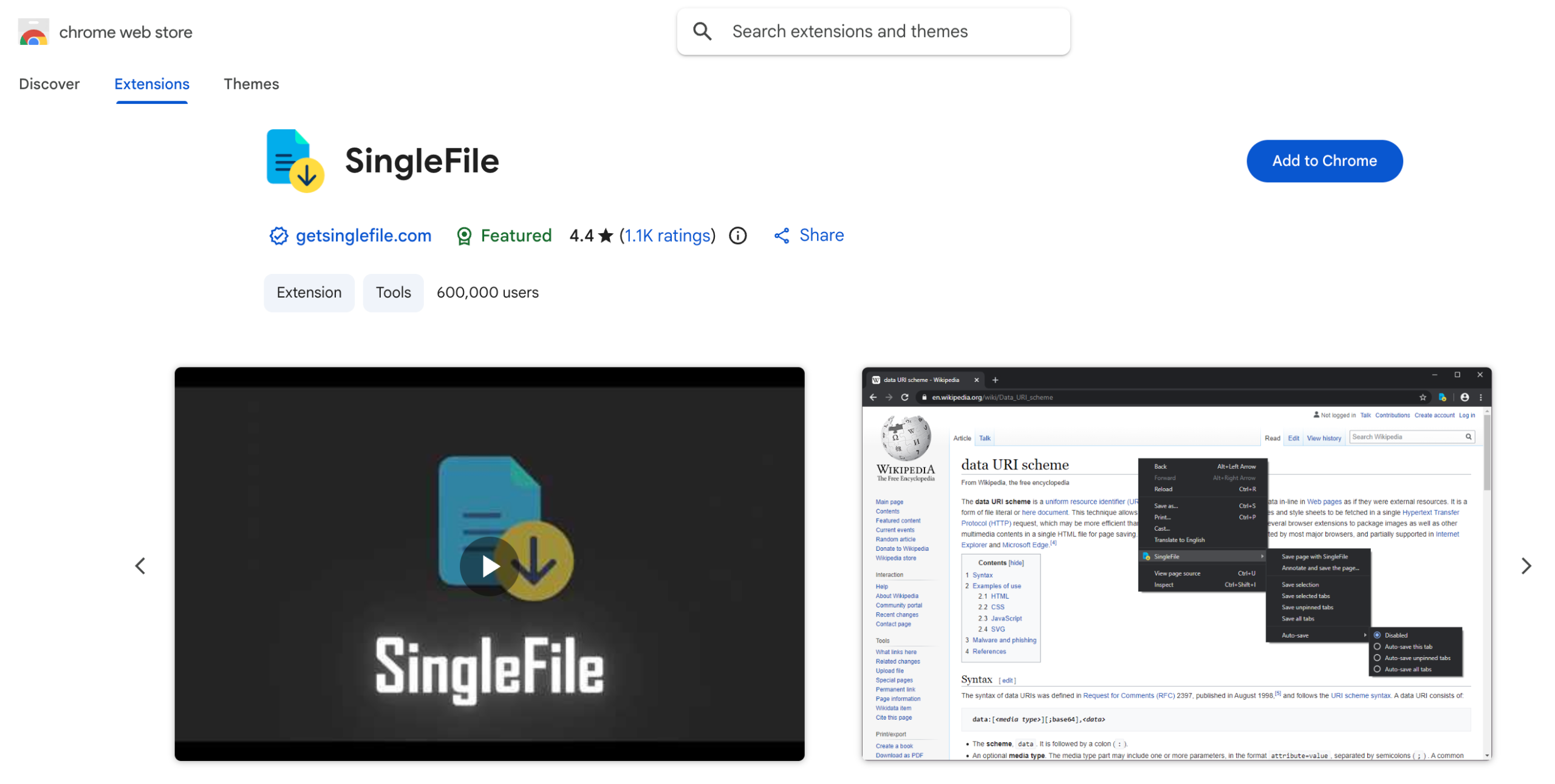
In this situation, manually copying the webpage’s source code may not be enough. A modern webpage can include CSS, JavaScript, images, fonts, and other resources. A browser extension such as SingleFile can simplify the process by saving a webpage as a single HTML file.
How to Use SingleFile:
- Install the SingleFile extension in a supported browser.
- Open the webpage you want to save and allow the page to finish loading.
- Click the SingleFile extension icon, then wait while the extension processes the page.
- Choose a location to save the generated HTML file.
- Open the saved file in your browser to check the result.
4. Save HTML as a File on Windows With Online Tools
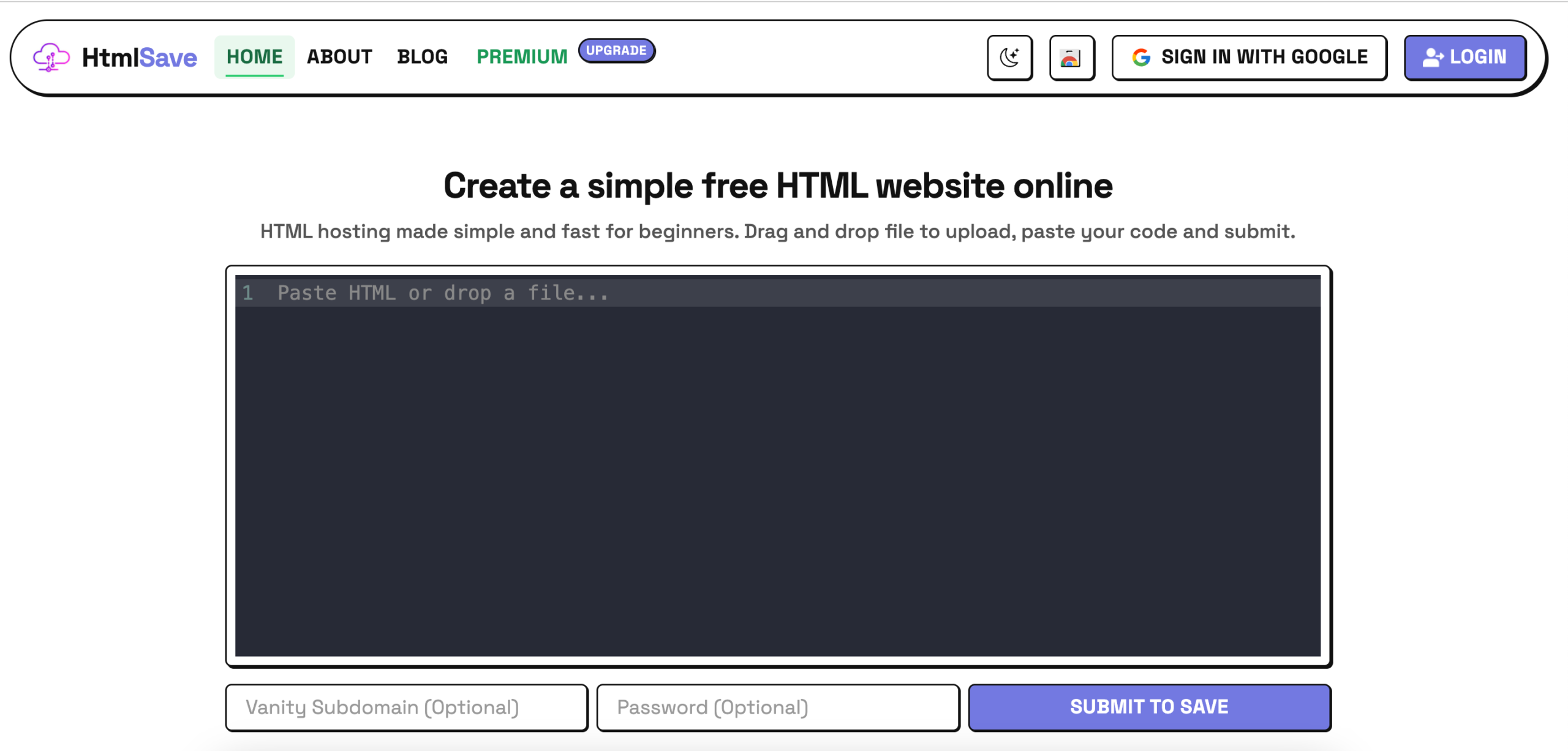
If you don’t want to install an extension or desktop application, an online HTML-saving tool such as HTMLSave can provide another option.
Online tools can be convenient because everything happens through a web browser. This can be useful when you’re working on a different computer or only need to save HTML occasionally.
Steps:
- Open your browser on Windows and visit the HTMLSave website.
- Enter, upload, or provide the HTML or webpage information supported by the service.
- Start the saving or conversion process, and wait for the tool to process the content.
- Download the generated HTML file, then open the file in your browser to verify it.
5. Save HTML as a File With a Webpage Archiver
For users who want to preserve complete webpages rather than simply save HTML source code, a webpage archiver can be a more suitable solution.
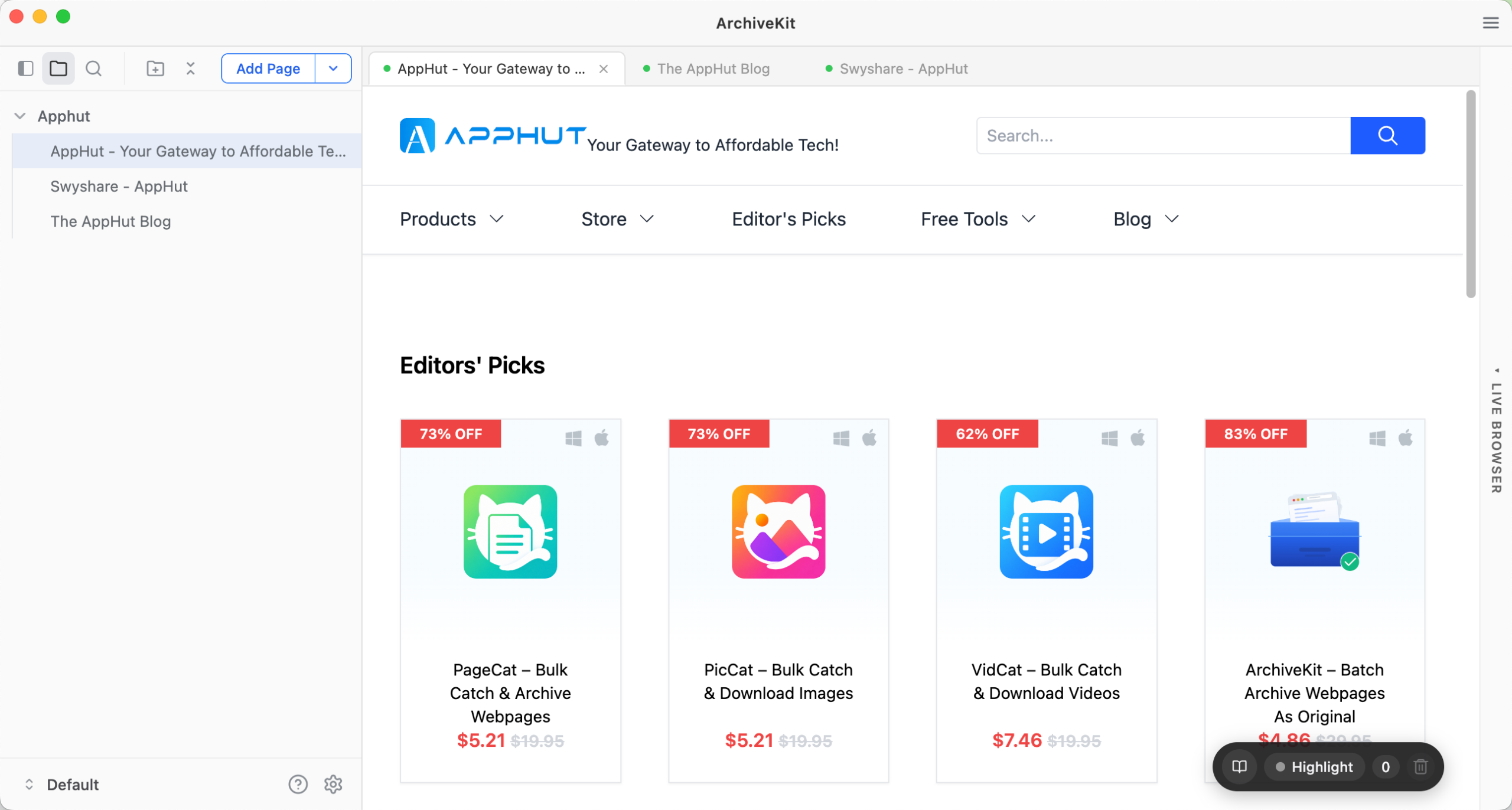
Swyshare ArchiveKit is a webpage archiving tool that can help save online webpage content locally. This approach can be useful when you want to maintain a local reference copy of a webpage and its related resources.
Steps:
- Download and install Swyshare ArchiveKit on your computer, then launch the application.
- Enter or provide the webpages you want to archive, load the full page to start the archiving process.
- Open the saved webpage to verify the archived content.
6. Which Method Should You Choose?
The right method depends mainly on what you’re trying to save.
| Method | Best For |
|---|---|
| Notepad on Windows | Saving HTML code you’ve written |
| TextEdit on Mac | Creating basic HTML files |
| SingleFile | Saving individual webpages as single HTML files |
| HTMLSave | Quick browser-based HTML-saving tasks |
| Swyshare ArchiveKit | Archiving webpages and related content |
7. Conclusion
Saving HTML as a file is quick and easy with the right method. Use a text editor for basic HTML code, SingleFile for saving individual webpages, HTMLSave for an online solution, or Swyshare ArchiveKit for more complete webpage archiving. Choose the option that best fits your needs and keep your webpages accessible offline.


