
How to Fix Chrome Flashing Screen?

Google Chrome is one of the most popular web browsers, but users may occasionally experience a flashing or flickering screen while browsing. The issue can appear as brief flashes, black screens, rapidly blinking tabs, or a browser window that repeatedly flickers when scrolling, watching videos, or switching between pages.
A Chrome flashing screen can be caused by hardware acceleration, outdated graphics drivers, incompatible extensions, corrupted browser data, or conflicts with Windows display settings.
In this guide, we will explain how to fix the Chrome flashing screen issue using practical solutions, from changing browser settings to updating your graphics driver.
1. How to Fix Chrome Flashing Screen?
1.1 Disable Hardware Acceleration
Hardware acceleration allows Chrome to use your computer’s GPU to render web content more efficiently. However, compatibility issues between Chrome and certain graphics drivers can sometimes cause flickering, black screens, or visual glitches.
To disable hardware acceleration:
- Open Google Chrome and click the three-dot menu in the upper-right corner.
- Select Settings, then navigate to System, turn off Use graphics acceleration when available, and relaunch Chrome when prompted.
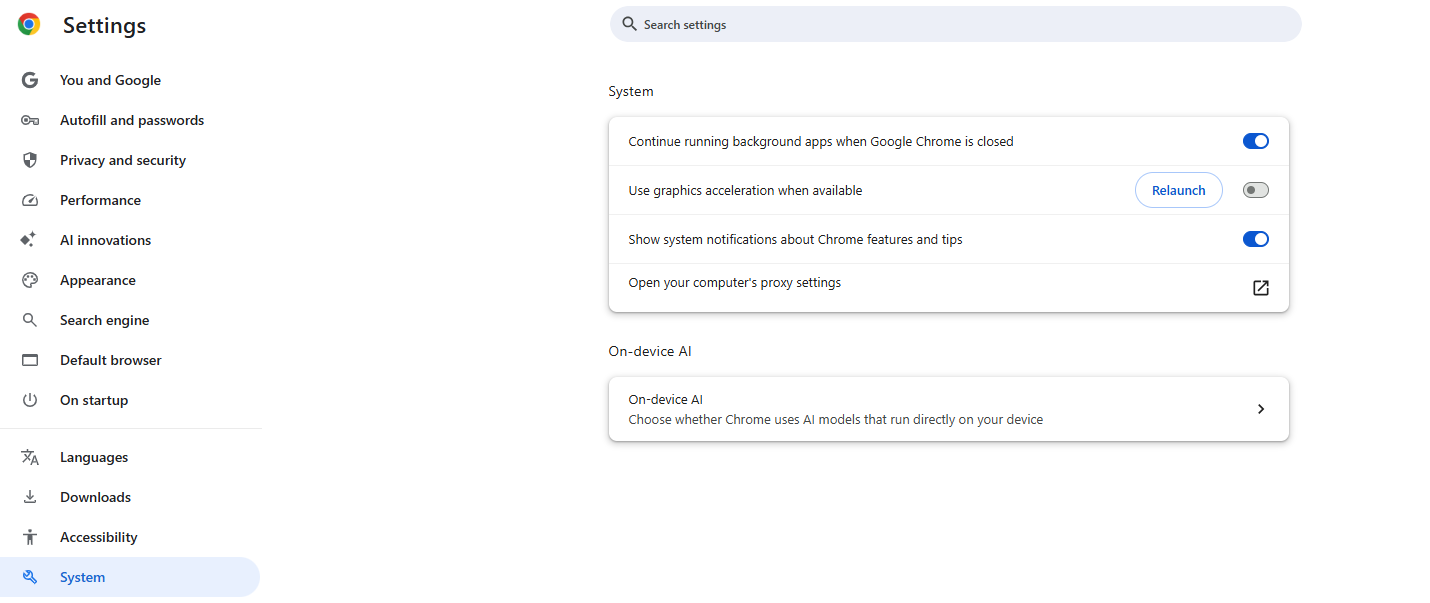
After restarting the browser, check whether the screen still flashes. If the issue disappears, it may have been related to GPU acceleration or your graphics driver.
2.2 Update Google Chrome
An outdated Chrome version may contain bugs or compatibility problems that affect how webpages are displayed. Updating the browser can help resolve these issues.
Follow these steps:
- Open Chrome and click the three-dot menu.
- Select Help > About Google Chrome.
- Allow Chrome to check for available updates.
- Install any available update and relaunch the browser.
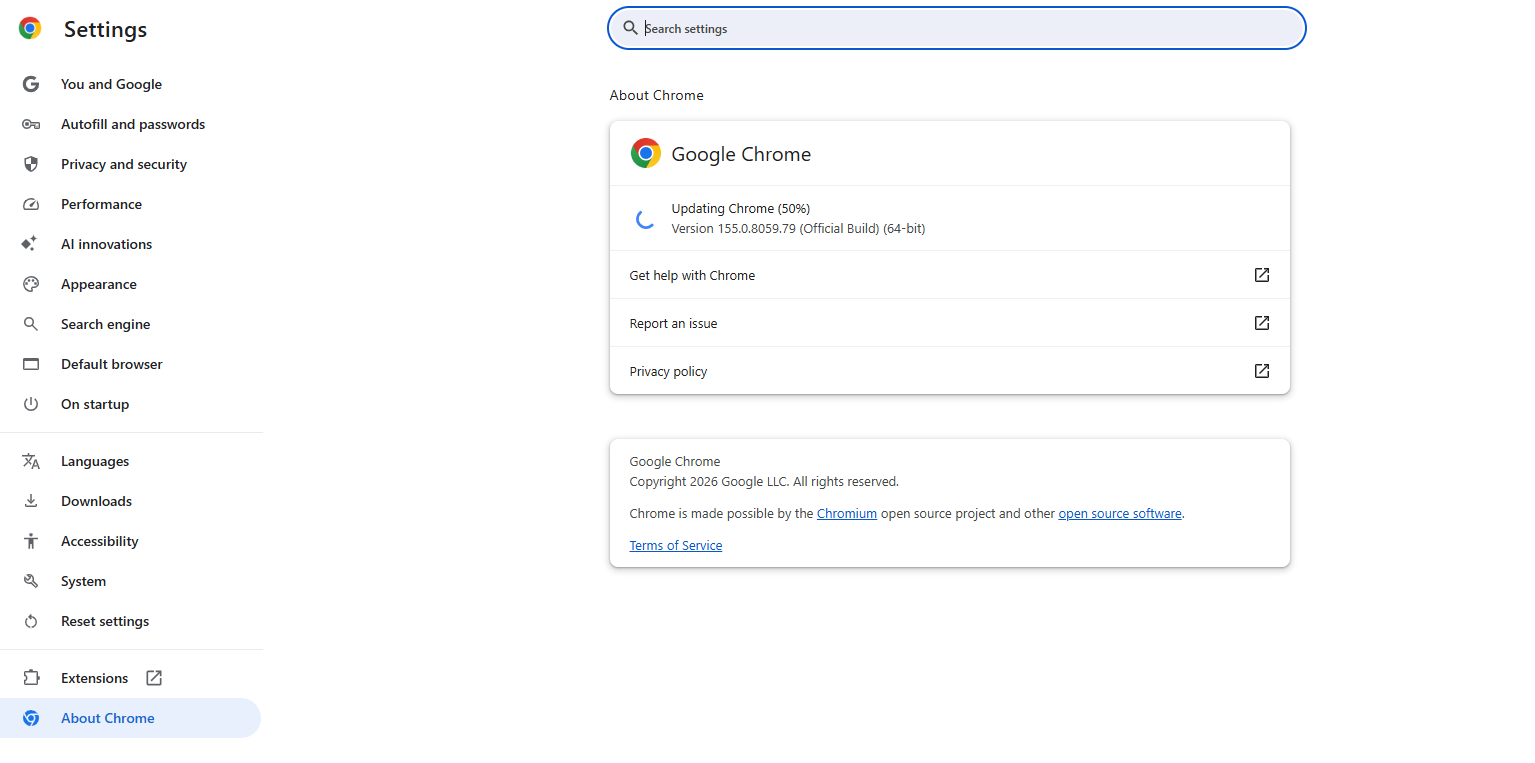
If Chrome is already up to date, proceed to the next solution.
1.3 Update Your Graphics Driver
Outdated, corrupted, or incompatible graphics drivers are another common cause of screen flickering. Since Chrome relies on your graphics hardware to render certain visual elements, driver problems may affect browser performance.
On Windows, you can check for driver updates through Device Manager:
- Right-click the Start button and select Device Manager.
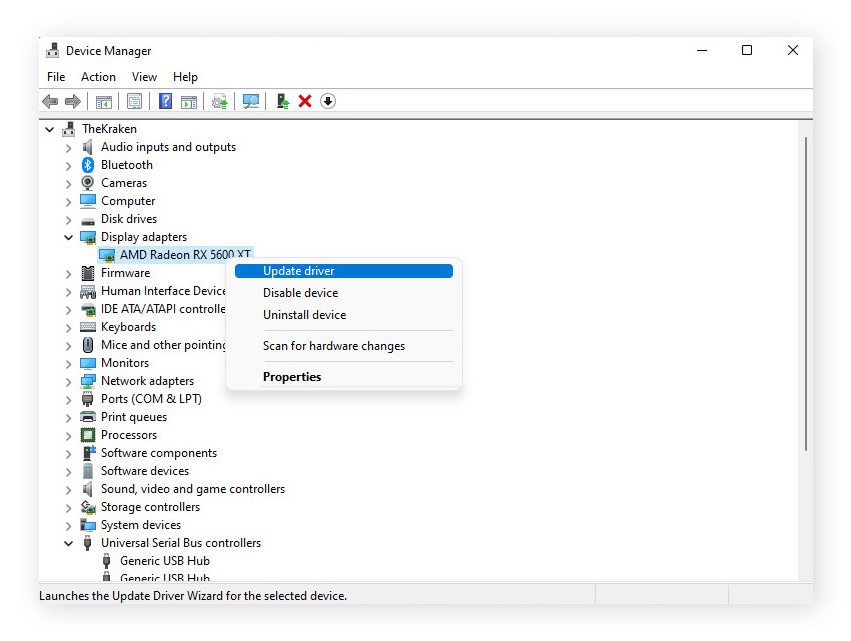
- Expand Display adapters.
- Right-click your graphics device and select Update driver.
- Follow the on-screen instructions.
1.4 Disable or Remove Chrome Extensions
Some browser extensions may conflict with Chrome’s rendering process, especially those that modify webpages, manage downloads, block advertisements, or customize the browser interface.
To identify problematic extensions:
- Open Chrome and enter
chrome://extensionsin the address bar, then turn off all extensions. - Restart Chrome and check whether the flickering stops.
- Re-enable extensions one at a time to identify the possible cause.
- Remove any extension that consistently triggers the issue.
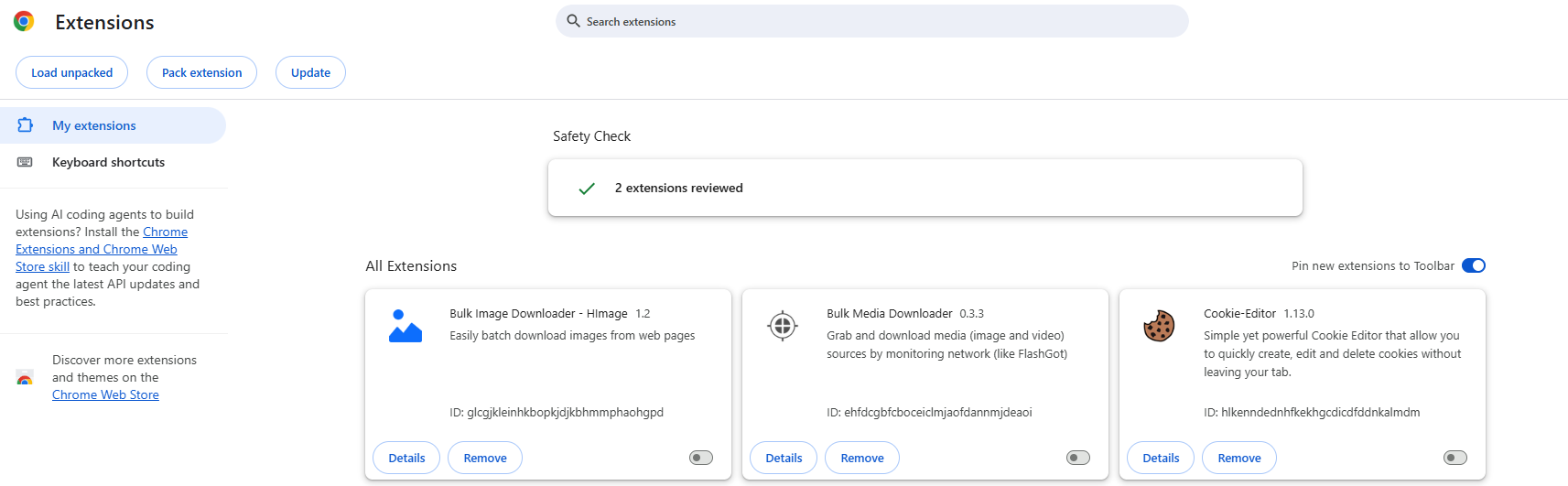
If disabling extensions solves the problem, you can keep the incompatible extension disabled or look for an updated alternative.
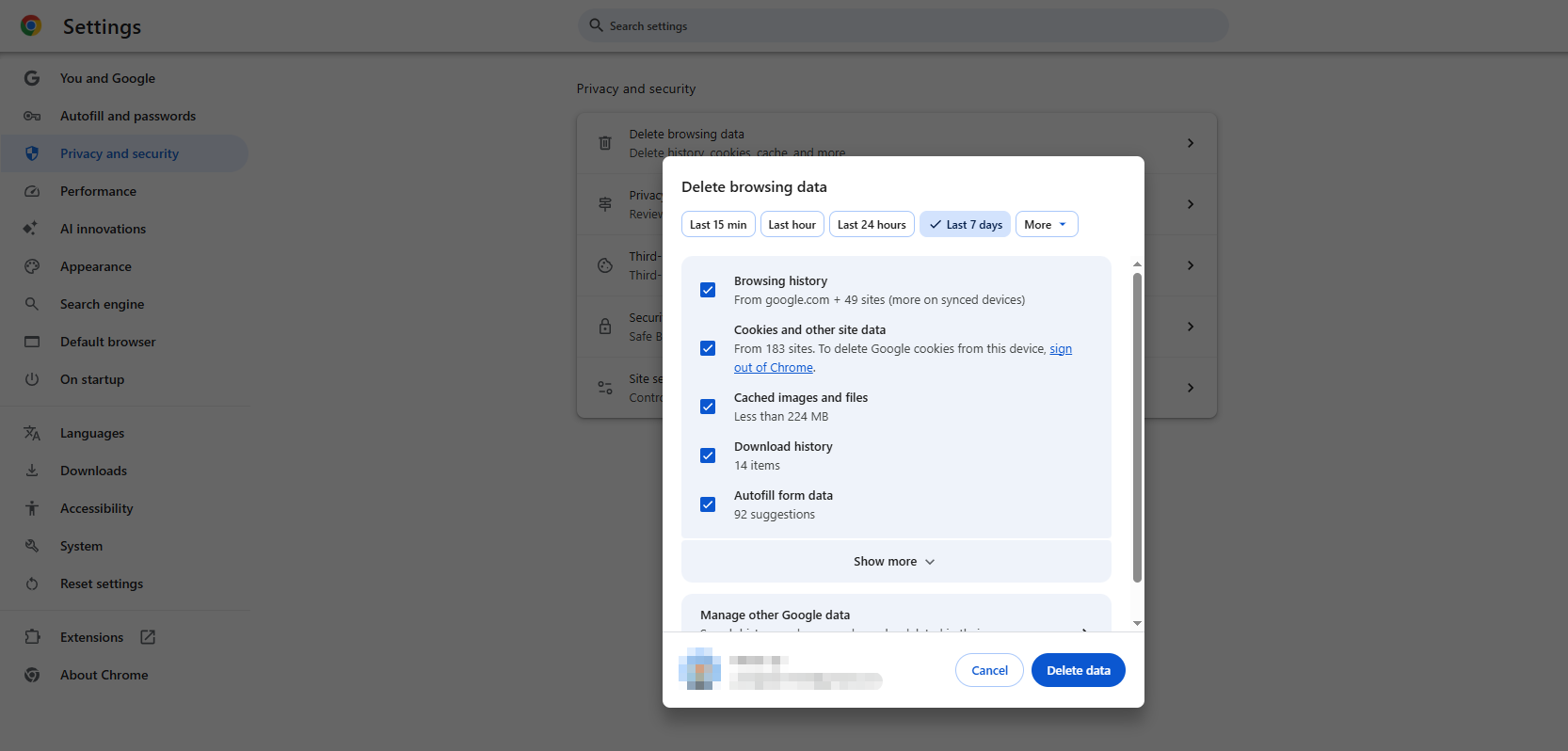
1.5 Clear Chrome’s Cached Data
Corrupted cached files or browsing data may occasionally contribute to browser display problems. Clearing the cache is a useful troubleshooting step if Chrome flickers on particular websites or behaves inconsistently.
Here’s how to clear cached data:
- Open Chrome and press Ctrl + Shift + Delete on Windows.
- Choose the time period you want to clear and select Cached images and files.
- Click Delete data, then restart Chrome and revisit the affected website.
1.6 Check Windows Display Settings
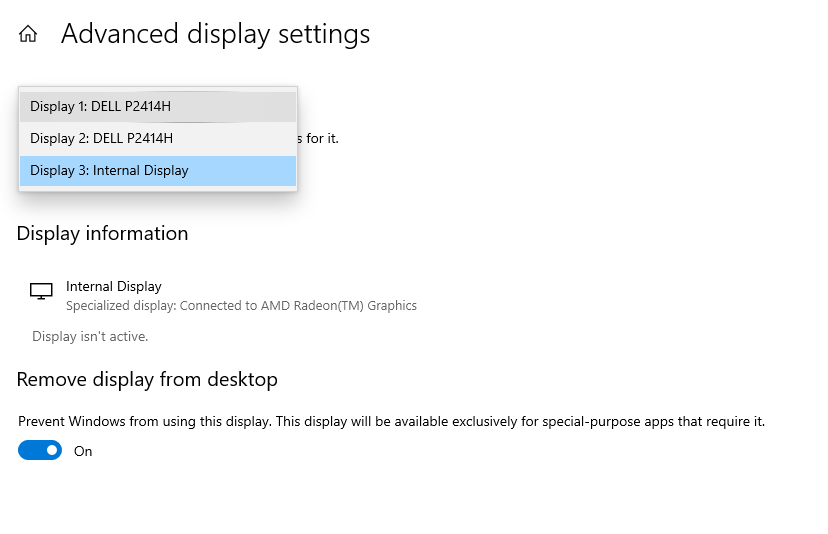
Sometimes the problem comes from Windows display settings rather than Chrome itself. An unsuitable refresh rate, a recent display configuration change, or a multi-monitor compatibility issue may cause visible flickering.
To check your refresh rate on Windows 11:
- Open Settings, go to System > Display > Advanced display.
- Select the appropriate monitor.
- Check the available refresh rates and choose one supported by your display.
1.7 Test Chrome in Incognito Mode
Incognito mode disables extensions by default unless you have explicitly allowed them to run. This makes it a quick way to determine whether an extension or certain browsing data may be contributing to the problem.
To test it:
- Open Chrome, then press Ctrl + Shift + N.
- Visit the website where the screen usually flashes.
- Browse for a few minutes and observe the results.
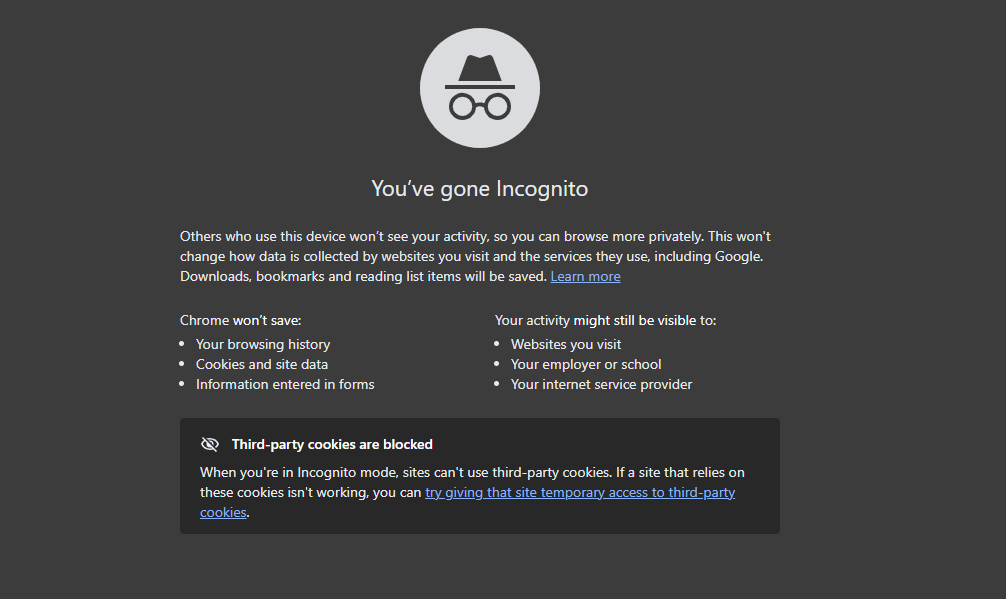
If Chrome works normally in Incognito mode, an extension or regular browsing profile setting may be responsible.
1.8 Reset Chrome Settings
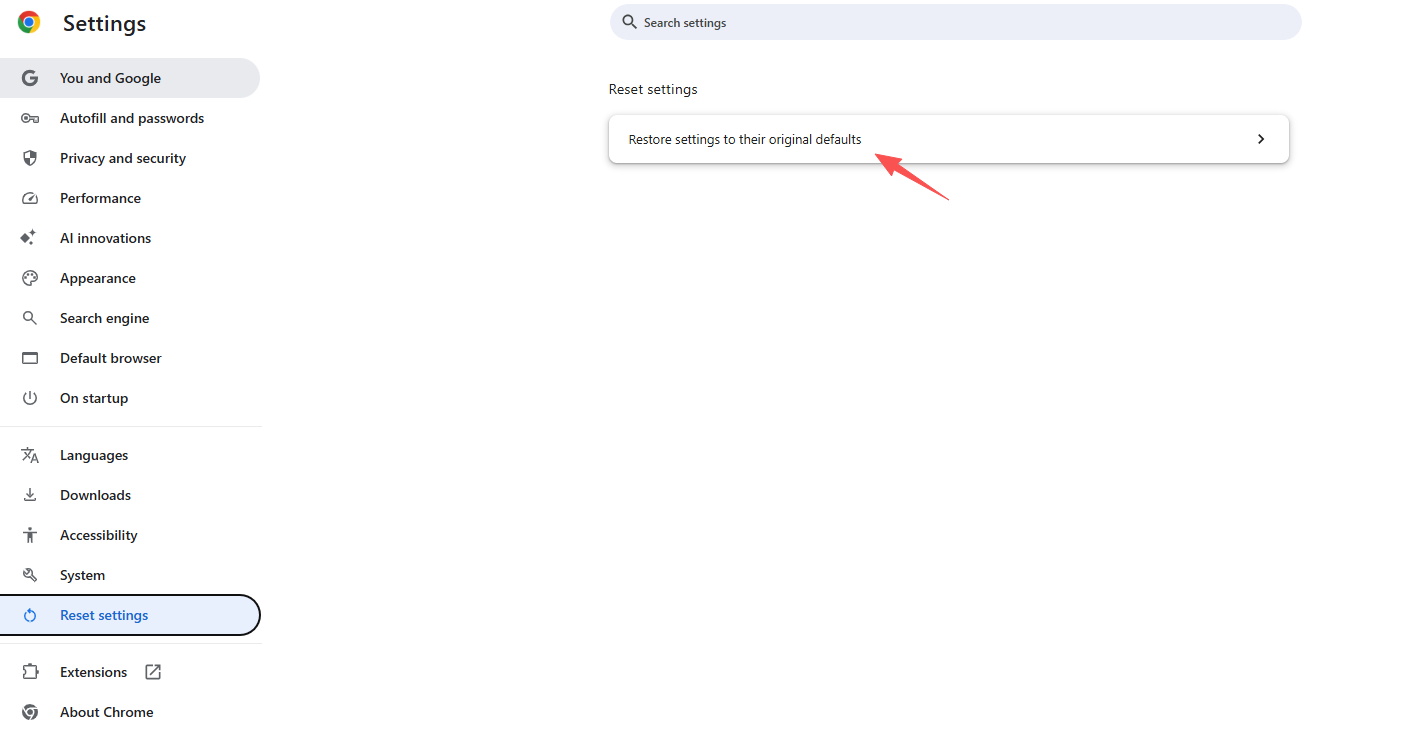
If the previous solutions do not work, a problematic browser setting may be responsible. Resetting Chrome can restore its default configuration without requiring a complete reinstallation.
To reset Chrome:
- Open Chrome Settings, select Reset settings.
- Click Restore settings to their original defaults and confirm the reset.
- Restart Chrome and check whether the flashing continues.
1.9 Scan for Malware and Unwanted Software
Malicious or unwanted software can interfere with browser behavior, install suspicious extensions, or change system settings. If Chrome started flickering after installing an unfamiliar application or extension, checking your computer for unwanted software is worthwhile.
On Windows:
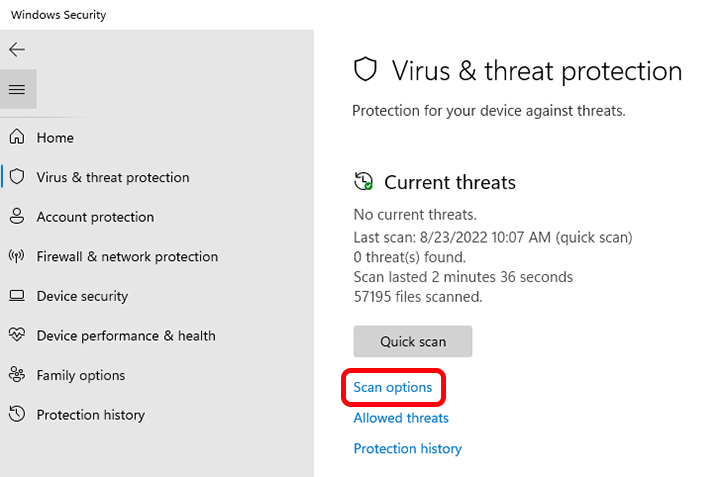
- Open Windows Security, go to Virus & threat protection, and click Scan options.
- Run a full scan, and follow the recommended steps if threats are detected.
1.10 Reinstall Google Chrome
If Chrome keeps flashing after trying other fixes, reinstalling it may replace corrupted program files.
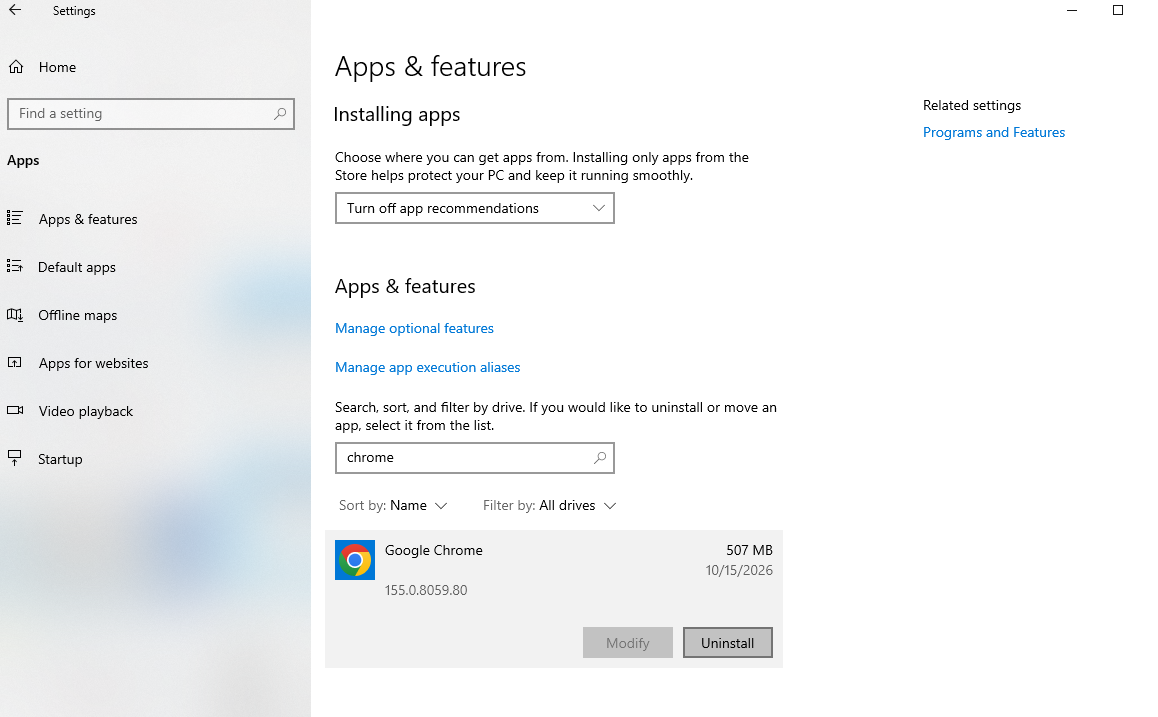
- Go to Windows Settings > Apps > Installed apps and uninstall Chrome, then restart your computer if necessary.
- Download and install Chrome from the official website.
- Reopen Chrome and check whether the flickering stops.
If the problem persists, try creating a new Chrome profile to rule out profile corruption.
2. Conclusion
A flashing screen in Google Chrome can be frustrating, but the cause is often manageable. Start by disabling hardware acceleration, updating Chrome and your graphics drivers, and testing your extensions. If the issue persists, clear cached data, check Windows display settings, reset Chrome, scan for malware, or reinstall the browser.
The most effective solution depends on whether the flickering is limited to Chrome or affects your entire computer. By identifying when the problem occurs and working through these fixes systematically, you can narrow down the cause and restore a smoother browsing experience.


