
How to Get a Thumbnail from YouTube?

A YouTube thumbnail is a visual preview image that represents a video and helps viewers understand what it is about. It is usually the first visual element viewers notice when browsing search results, recommended videos, playlists, or a creator’s channel. A good thumbnail can attract attention, communicate the video’s topic, and encourage viewers to click and watch.
There are many reasons why you might want to get a thumbnail from a YouTube video. You may be researching video content, collecting visual references, analyzing competitors, organizing your own content, or simply wanting to save a thumbnail for personal use. Fortunately, getting a thumbnail from YouTube is relatively easy, and you do not necessarily need advanced technical skills.
In this guide, we will explain four practical ways to get a thumbnail from YouTube, including detailed steps and popular options you can consider.
1. Get a YouTube Thumbnail Using the Video URL
One of the fastest ways to get a YouTube thumbnail is to use the video’s unique ID. Every YouTube video has an ID that can be found in its URL. By combining this ID with a specific image URL format, you can directly access the thumbnail in your browser.
Steps:
- Open YouTube and find the video you want to get the thumbnail from, then copy the video’s URL from the address bar or use the Share button to copy the link.
- Identify the video ID. For a standard YouTube URL, this is usually the series of characters after
v=. - Add the video ID to the thumbnail URL format:
https://img.youtube.com/vi/VIDEO_ID/maxresdefault.jpg, then open the completed URL in a new browser tab.
If the thumbnail is displayed, right-click the image and choose Save Image As or the equivalent option in your browser.
If the maximum-resolution thumbnail is not available, try alternatives such as hqdefault.jpg, sddefault.jpg, or mqdefault.jpg instead of maxresdefault.jpg.
2. Inspect to Get the YouTube Thumbnail
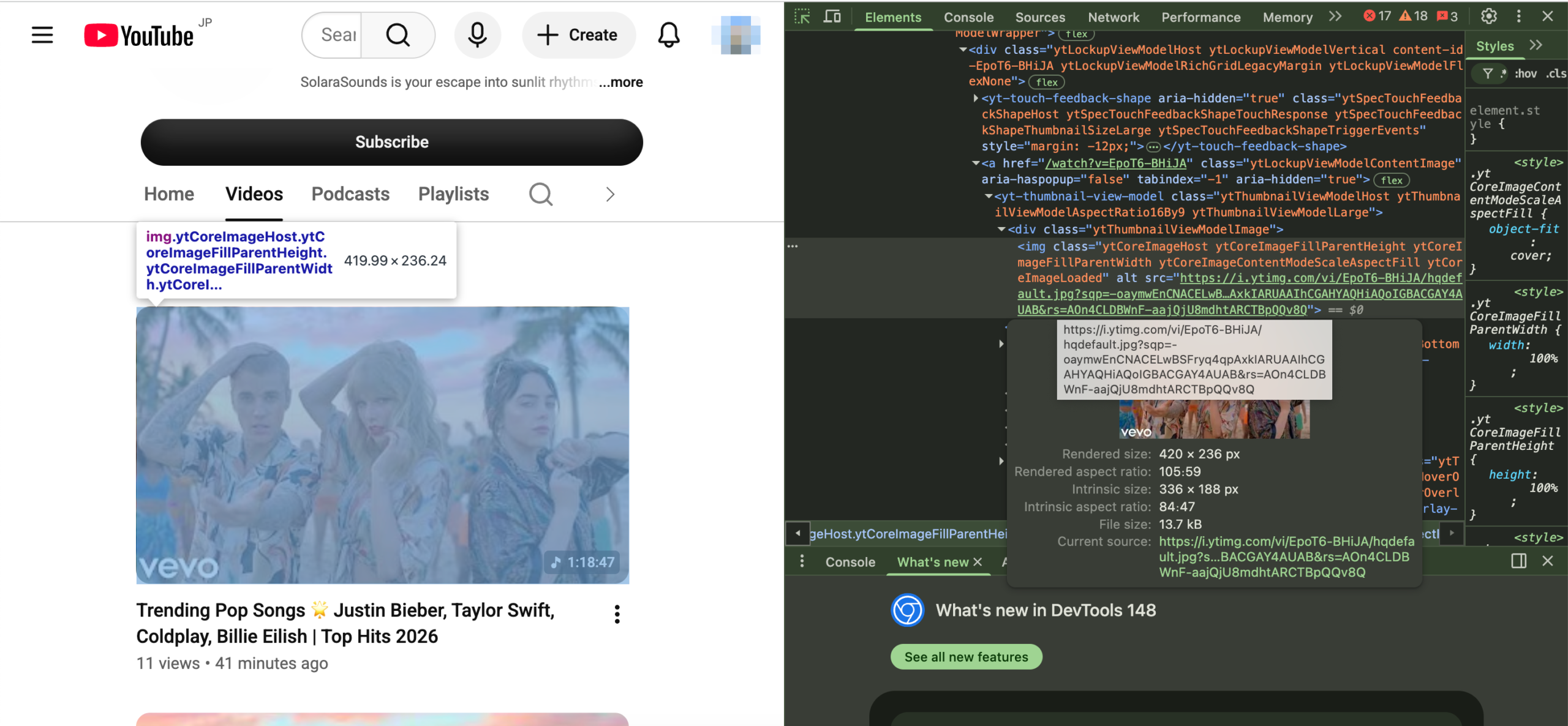
Another way to find a YouTube thumbnail is to inspect the webpage using your browser’s developer tools. This method allows you to examine the HTML and metadata associated with the YouTube page and locate image URLs.
This approach is more technical than using a direct thumbnail URL, but it can be useful if you want to understand how the thumbnail is embedded on the page or need to locate a specific image URL.
Steps:
- Open the YouTube video page in your desktop browser, then right-click an empty area of the page and select Inspect or Inspect Element.
- Open the developer tools panel and look through the page’s HTML or source code.
- Click the “select an element in the page to inspect it” icon and locate the Youtube thumbnial
- Find image URL associated with the video, then copy the relevant image URL and open it in a new browser tab.
- Right-click the thumbnail image and save it to your device.
3. Use Online YouTube Thumbnail Downloaders
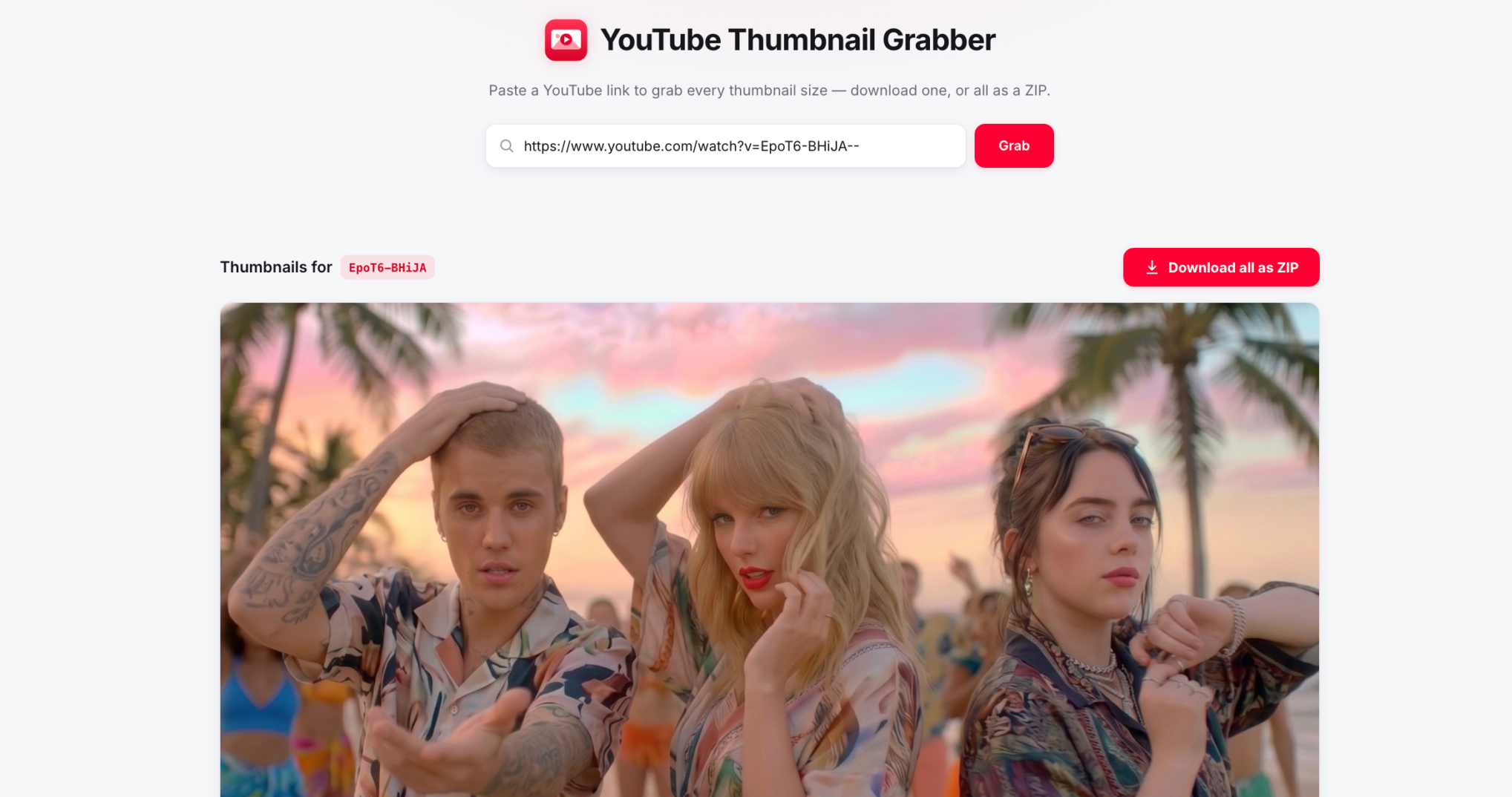
Online YouTube thumbnail downloaders are among the easiest options for people who want a quick and convenient way to save a video thumbnail. These tools typically allow you to paste a YouTube video URL into a search box and retrieve the available thumbnail images.
Many online thumbnail downloader tools provide thumbnails in different resolutions, allowing you to select the most suitable option. This is useful if you need a high-quality image for research or a smaller image for quick reference.
Popular Choices:
- Swyshare Youtube Thhumbnail Grabber
- Thumbload YouTube Thumbnail Downloader
- ImageYoutube YouTube Thumbnail Downloader
Steps:
- Open YouTube and locate the video whose thumbnail you want to download and copy the video’s URL.
- Open a reputable online YouTube thumbnail downloader like Swyshare Youtube Thhumbnail Grabber and paste the YouTube video URL into the website’s input field.
- Click the button to search, generate, or retrieve the thumbnail.
- Review the available thumbnail resolutions, select the appropriate download option and save the image to your computer.
4. Use YouTube Thumbnail Downloader Extensions
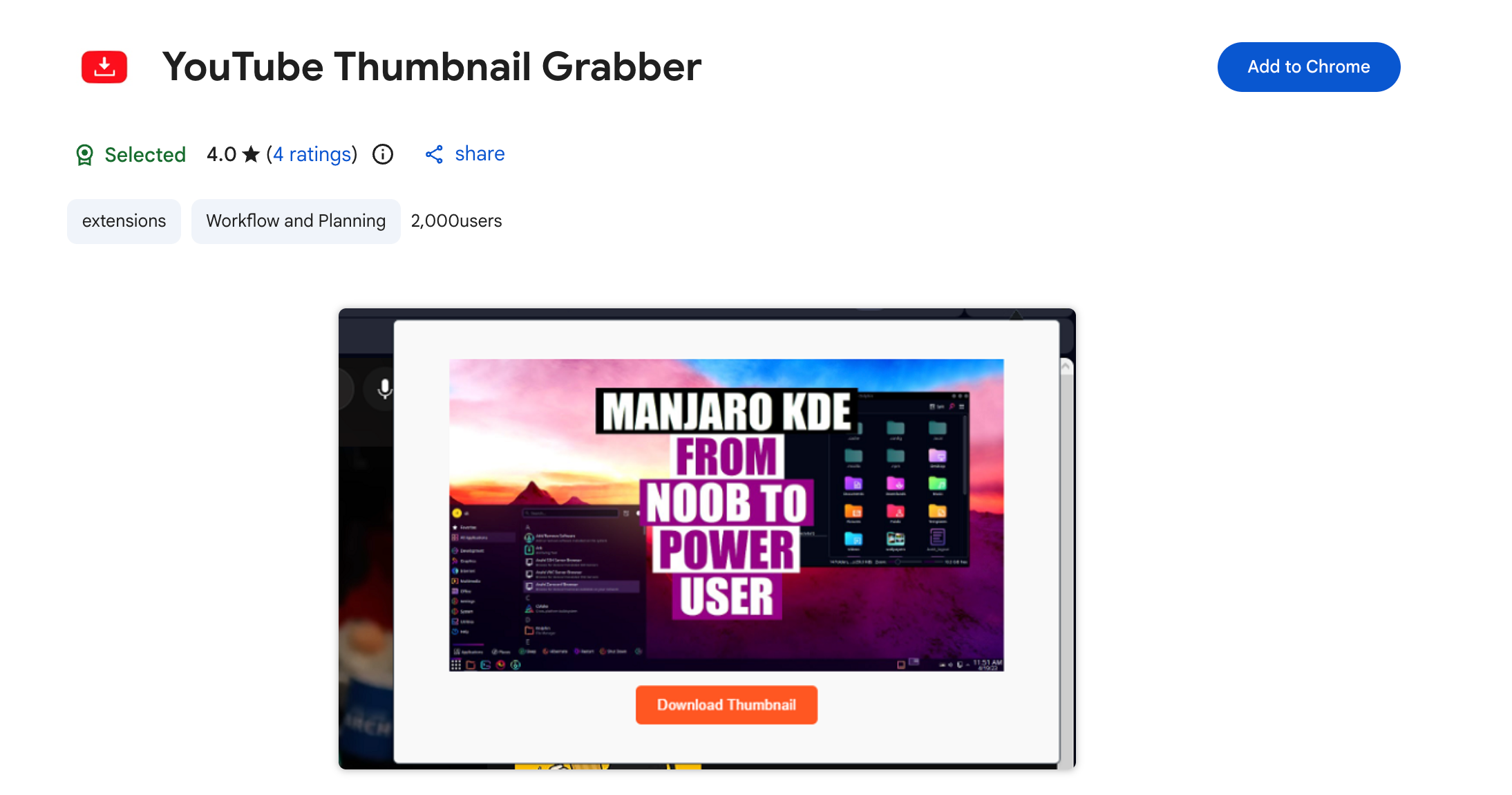
If you frequently need to get thumbnails from YouTube, a browser extension can make the process faster. These extensions integrate directly into your browser and may add a download button or thumbnail option to YouTube video pages.
Instead of copying a URL and opening a separate website every time, you may be able to retrieve the thumbnail directly while watching or browsing a video.
Popular Choices:
- Youtube Thhumbnail Grabber by FeriVOQ
- Kasper Thumbnail Grabber
Steps:
- Install a reliable extension like Youtube Thhumbnail Grabber by FeriVOQ.
- Open the YouTube video whose thumbnail you want to retrieve and click then extension icon to extract available thumbnails.
- Select your preferred resolution and save the image.
5. Conclusion
Getting a thumbnail from YouTube is a simple process, and there are several methods available depending on your technical experience and how often you need to download images. Using the video’s URL is one of the quickest options and allows you to access thumbnail images directly by using the video ID. Inspecting the YouTube page provides a more technical alternative for users who are comfortable working with browser developer tools.
For beginners, online YouTube thumbnail downloaders offer a convenient solution. You simply paste a video URL, select the desired resolution, and save the image. If you regularly download thumbnails, a browser extension can make the process even more efficient by adding thumbnail tools directly to your browsing experience.
With the right method, getting a YouTube thumbnail takes only a few moments. Whether you choose a direct URL, browser inspection, an online downloader, or an extension, you can find the approach that best fits your workflow and needs.


