
iPhone Privacy: Why Snapchat Location Is Being Used Randomly?

Many iPhone users become concerned when they notice the location arrow appearing randomly, especially when they are not actively using apps. One situation that frequently raises privacy questions is when the iPhone shows that Snapchat is using location services seemingly at random.
Because location data is sensitive, seeing an app access it unexpectedly can make users wonder whether their device is being tracked or if their privacy is at risk. In reality, there are several normal reasons why Snapchat might access your location occasionally. Features such as Snap Map, location-based filters, and background app refresh can all trigger brief location checks.
Understanding why Snapchat may use your location and knowing how to manage iPhone privacy settings can help you regain full control over when and how apps access your location data. In this guide, we will explain the common causes of random Snapchat location activity, how to stop it, and some optional tools you can use if you want to control or change your phone’s reported location.
1. Why Snapchat May Use Your Location Randomly?
If your iPhone indicates that Snapchat is accessing location services unexpectedly, it is usually related to the app’s built-in features or system settings. Here are some of the most common reasons.
1.1 Snap Map updates
With Snapchat’s Snap Map, users can share their live location so friends can see where they are. If location sharing is enabled, the app may occasionally update your position in the background so your location stays accurate.
1.2 Location-based filters and stickers
Snapchat provides geofilters, location tags, and stickers that depend on your current location. To make these features available instantly, the app may occasionally check your location.
1.3 Background App Refresh
When background app refresh is enabled on your iPhone, apps can periodically update their content. Snapchat may briefly access location data during these updates.
1.4 “Always” location permission
If Snapchat is set to Always allow location, it can access your location even when the app is closed.
1.5 iPhone privacy indicators
Modern iOS versions display a small arrow whenever an app uses location services. This privacy indicator may appear briefly even if the location request lasts only a second.
In most cases, random location usage is simply a result of these background features rather than a privacy breach.
2. How to Resolve Snapchat Location Is Being Used Randomly
If you want to limit when Snapchat can access your location, iOS provides several privacy controls that allow you to manage permissions easily.
2.1 Change Snapchat Location Permission
The most effective solution is adjusting Snapchat’s location permission.
Steps:
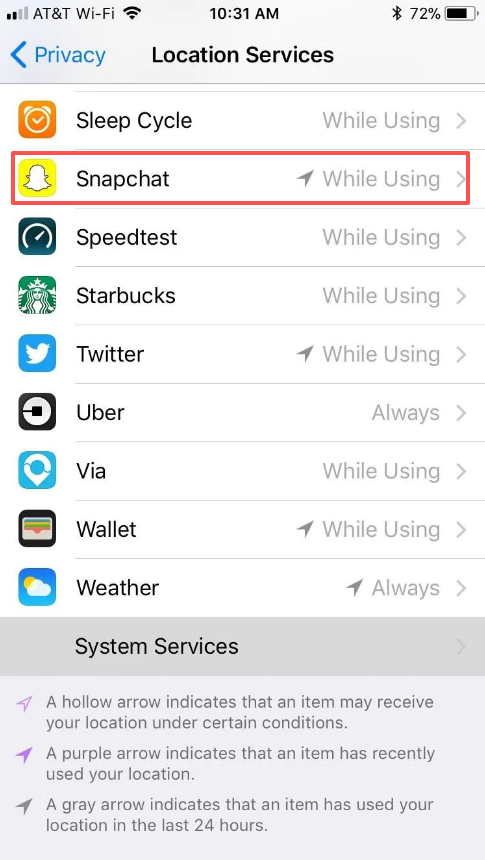
Open Settings, go to Privacy & Security, tap Location Services, find Snapchat, and adjust the location permission to While Using the App or Never.
Setting the permission to While Using the App ensures Snapchat can only access location data when the app is open.
2.2 Enable Ghost Mode in Snap Map
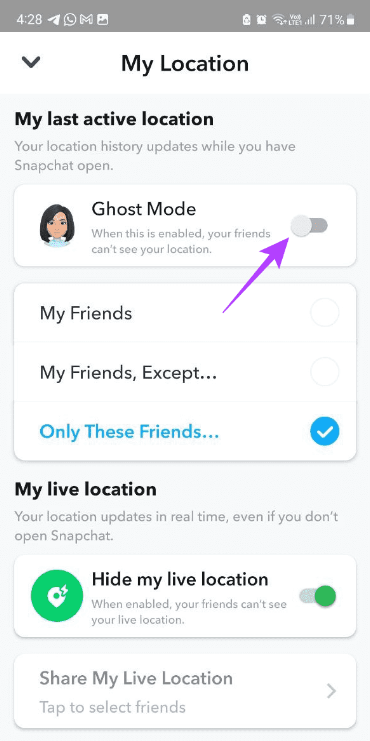
If you do not want Snapchat to share your location with friends, you can enable Ghost Mode.
Steps:
Open Snapchat and tap your profile icon > Click Settings and select See My Location > Turn on Ghost Mode
Once Ghost Mode is enabled, your location will no longer appear on Snap Map.
2.3 Disable Background App Refresh
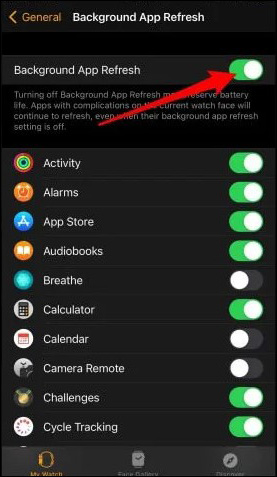
Turning off background refresh prevents Snapchat from updating content when the app is not in use.
Steps:
Open Settings and tap General > Select Background App Refresh > Turn off refresh for Snapchat
This reduces background activity and may prevent random location checks.
2.4 Turn Off Precise Location
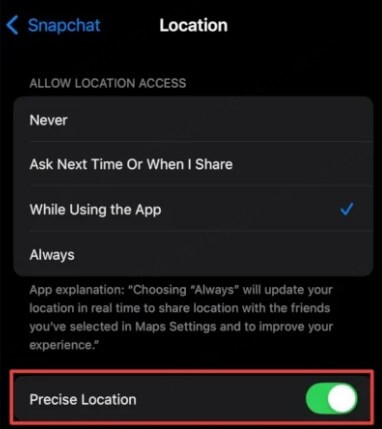
Another option is disabling precise location access.
Steps:
Navigate to Settings → Privacy & Security → Location Services, select Snapchat, then disable Precise Location.
When precise location is disabled, Snapchat only receives an approximate location rather than your exact GPS coordinates.
2.5 Restart or Update Your iPhone
Sometimes random location activity is caused by temporary software glitches.
You can try:
- Restarting the device
- Updating to the latest iOS version
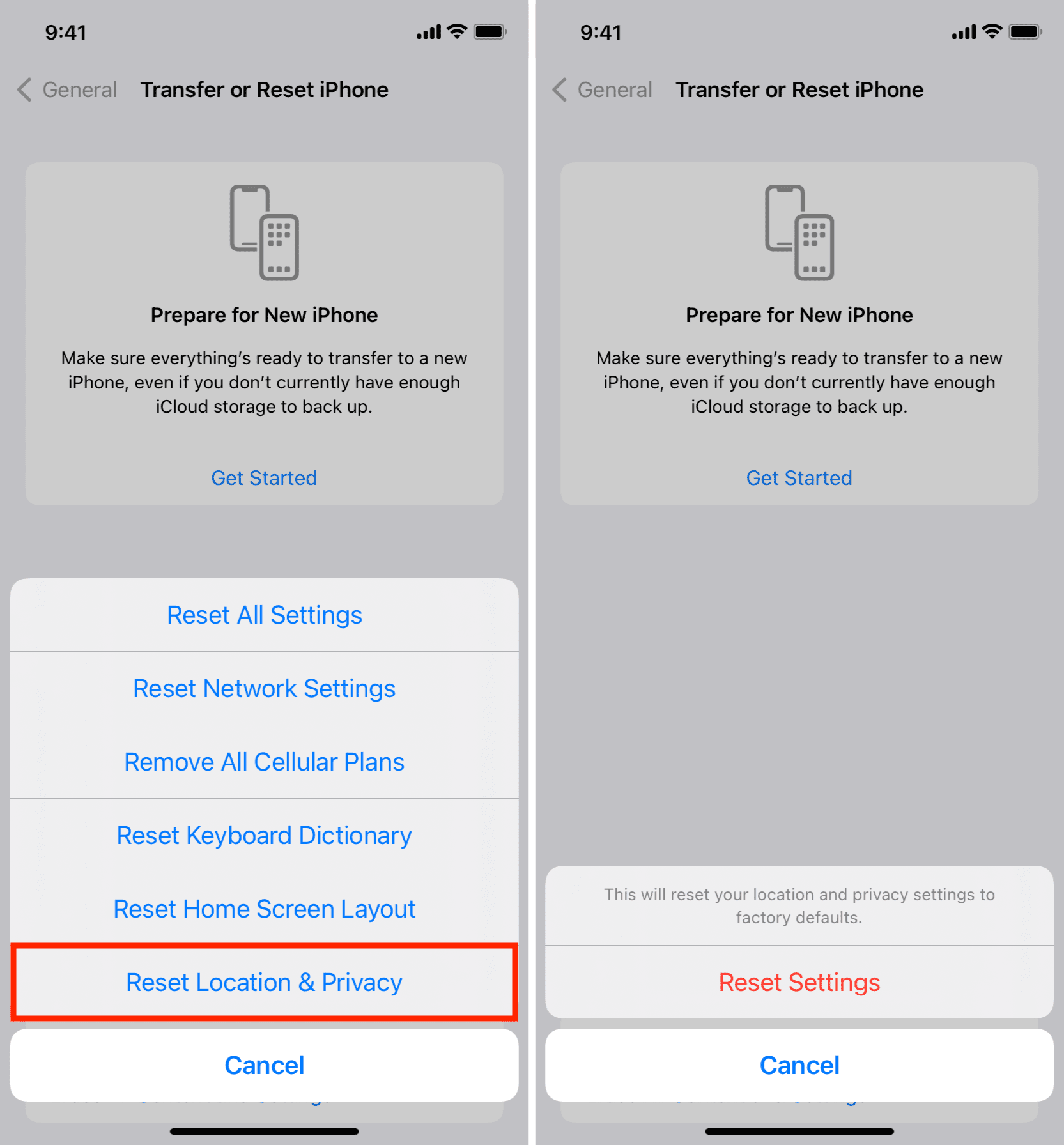
- Resetting location settings
You can reset your location settings by going to Settings → General → Transfer or Reset iPhone → Reset → Location & Privacy.
3. Bonus: Fix or Change iPhone Location with a Location Changer
In some cases, users want more control over their iPhone device’s location, especially for testing apps, protecting privacy, or accessing location-restricted content. This is where location changer tools can help. Location changers allow you to simulate a different GPS location on your device.
Here are several popular iPhone location changer tools:
- Tenorshare iAnyGo: A widely used option is Tenorshare iAnyGo. This software allows users to teleport their GPS location or simulate walking routes.
- Aimerlab MobiGo: Another well-known location spoofing tool for both iOS and Android devices. It allows users to set a virtual location anywhere in the world with just a few clicks.
- Dr.Fone Virtual Location: Apart of the Dr.Fone toolkit and supports GPS location modification for many apps.
4. Conclusion
If your iPhone shows that Snapchat is using location randomly, it is usually caused by built-in features such as Snap Map updates, geofilters, or background app refresh. The iOS privacy indicator simply alerts you when an app briefly accesses location services.
Fortunately, Apple provides strong privacy controls that allow users to manage exactly how apps use their location data. By adjusting Snapchat’s location permission, enabling Ghost Mode, or disabling background refresh, you can easily reduce or stop these random location checks.
For users who want even more control over their device’s location, location changer tools offer an additional option to simulate or modify GPS data. However, these tools should be used carefully and primarily for privacy or testing purposes.
Ultimately, understanding how iPhone location settings work can help you protect your privacy while still enjoying the features offered by apps like Snapchat. 📱🔒


