
Best Tools for Scrolling Screen Capture

Capturing screenshots is something nearly everyone does — whether you’re creating tutorials, saving long web pages, documenting bugs, or archiving conversations. Standard screenshots only capture what’s visible on your screen, but scrolling screen capture tools let you grab content that extends beyond the visible area — like long webpages, lengthy chats, spreadsheets, or app content that scrolls vertically or horizontally. In this article, we’ll explore the best scrolling screen capture tools for Windows and macOS, great Chrome extensions for scrolling screenshots, how to tackle common problems like iframe issues, and ways to fix situations where your scrolling capture stops prematurely.
1. Best Tools for Scrolling Screen Capture on Windows
Windows users have access to several powerful tools for capturing scrolling content — from free utilities to professional capture suites. Here are some of the standout options:
1.1 ShareX
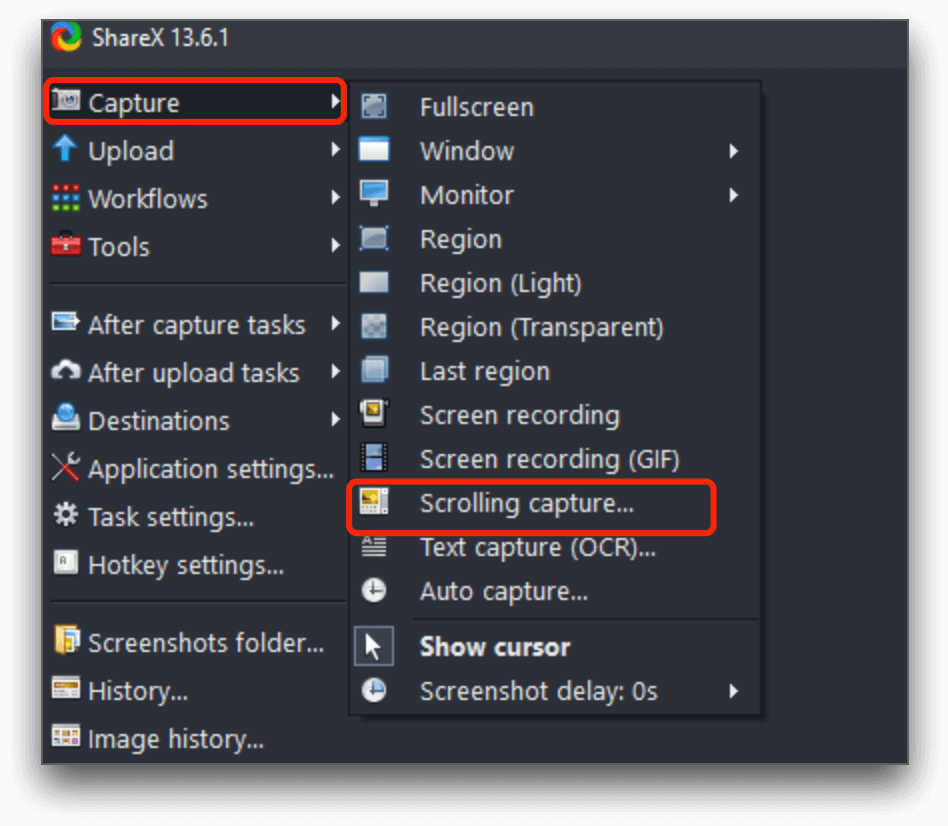
ShareX is a free, open-source tool that’s extremely capable for advanced screen capture tasks. While it excels at traditional screenshots and automated workflows, its scrolling capture functions can be configured to grab content beyond the visible screen. It is highly customizable and integrates well with automation tasks on Windows.
1.2 Snagit
Snagit by TechSmith is one of the most powerful commercial screen capture apps available, offering robust support for scrolling capture (also referred to as panoramic or scrolling capture). It works across web pages, apps, and long documents, and includes a strong editing suite.

1.3 PicPick
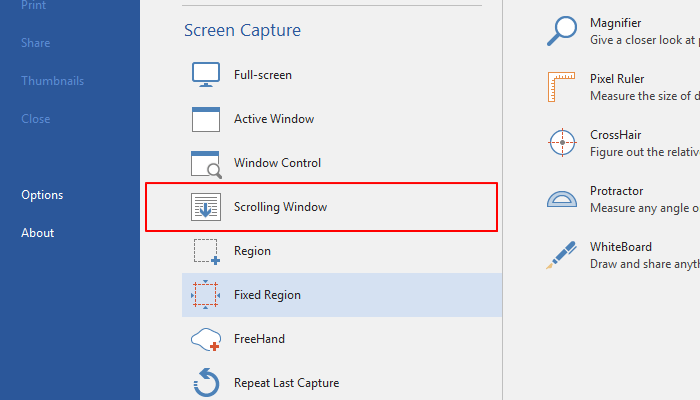
PicPick is another Windows tool that supports scrolling window capture with less complexity than ShareX. It offers a user-friendly interface and simple scrolling capture options, ideal for users who need a straightforward tool without being overwhelmed by features.
1.4 ScreenPal
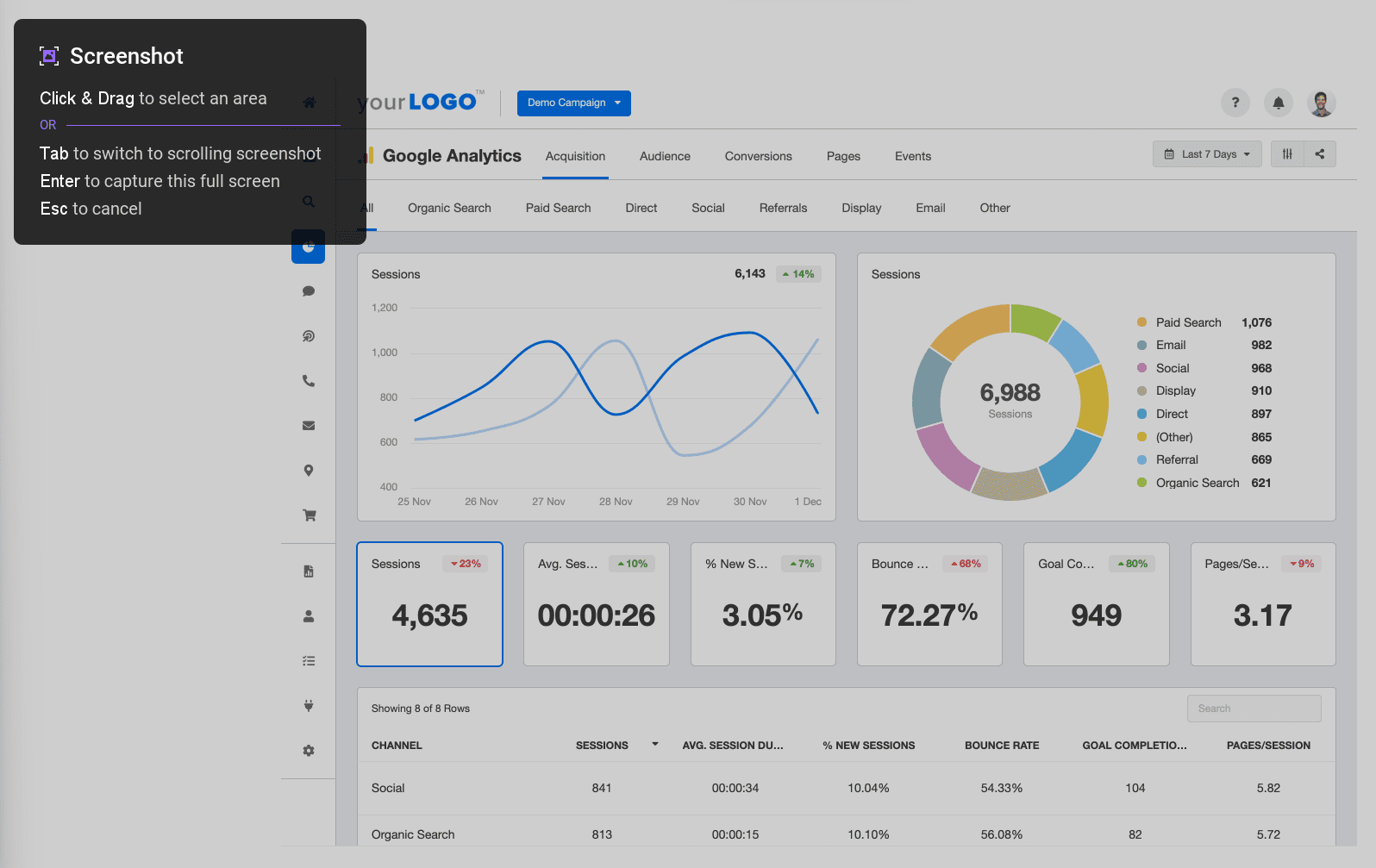
ScreenPal (formerly Screencast-O-Matic’s tool) lets users take scrolling screenshots easily on both Windows and macOS. It focuses on long screenshots as a single image without stitching manually.
2. Best Tools for Scrolling Screen Capture on Mac
macOS has its own set of tools — from lightweight utilities to full capture suites — for grabbing scrolling content.
2.1 Snagit
As on Windows, Snagit works on macOS with powerful screen capture features that include scrolling capture. It works especially well when browser extensions fail or when capturing inside non-browser apps.
2.2 Monosnap
Monosnap is a versatile screenshot app for both macOS and Windows that includes scrolling capture, annotations, cloud upload options, and video recording capabilities. It’s a good lightweight alternative for many users.
2.3 Longshot
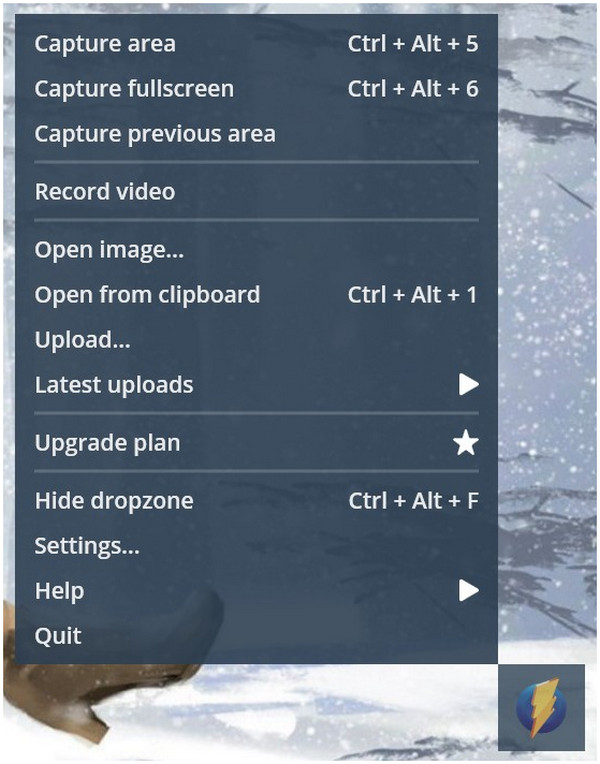
Longshot is a macOS app designed specifically for capturing scrolling screenshots. It’s praised for its simplicity and can handle vertical and panoramic captures neatly across long content.
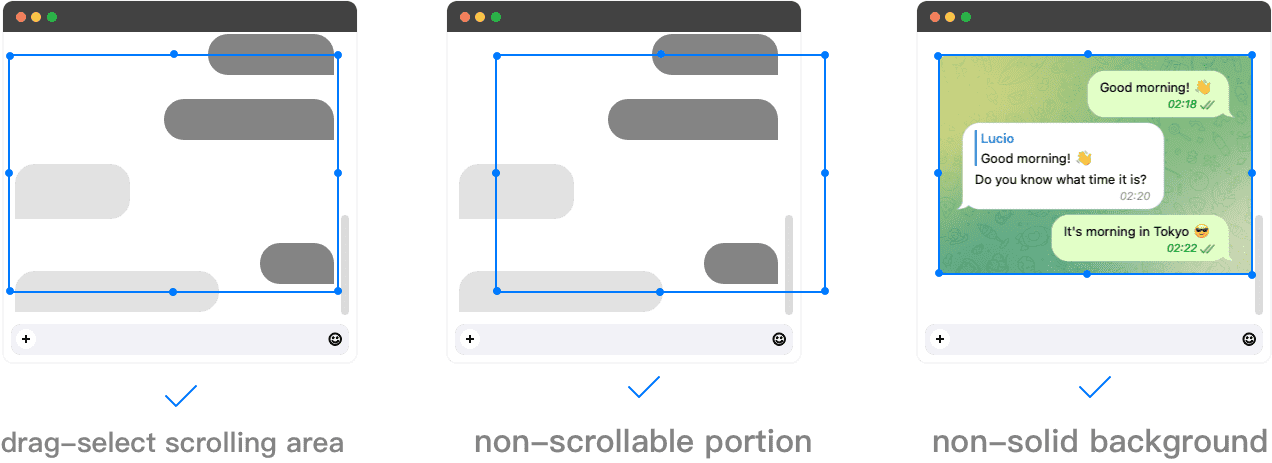
2.4 ScrollSnap
ScrollSnap is an open-source option on macOS that captures long scrollable content by stitching screenshots automatically. It’s lightweight and ideal for users who prefer open-source tools.
3. Best Chrome Extensions for Scrolling Screen Capture
For capturing long web pages inside your browser, Chrome extensions are convenient and often free.
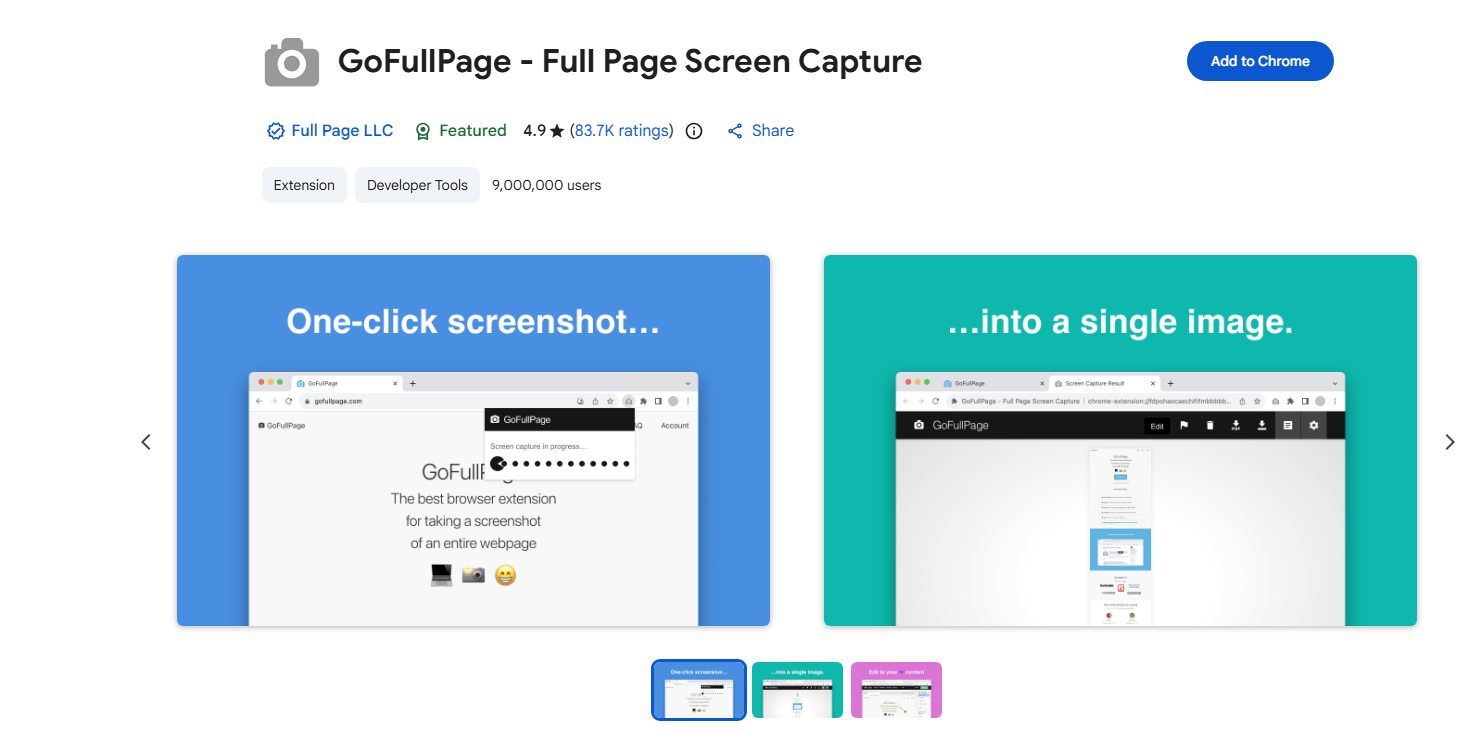
3.1 GoFullPage – Full Page Screen Capture
GoFullPage is one of the most popular full-page capture extensions in the Chrome Web Store. One click captures the entire web page, including scrollable content, and lets you export to PNG, JPEG, or PDF.
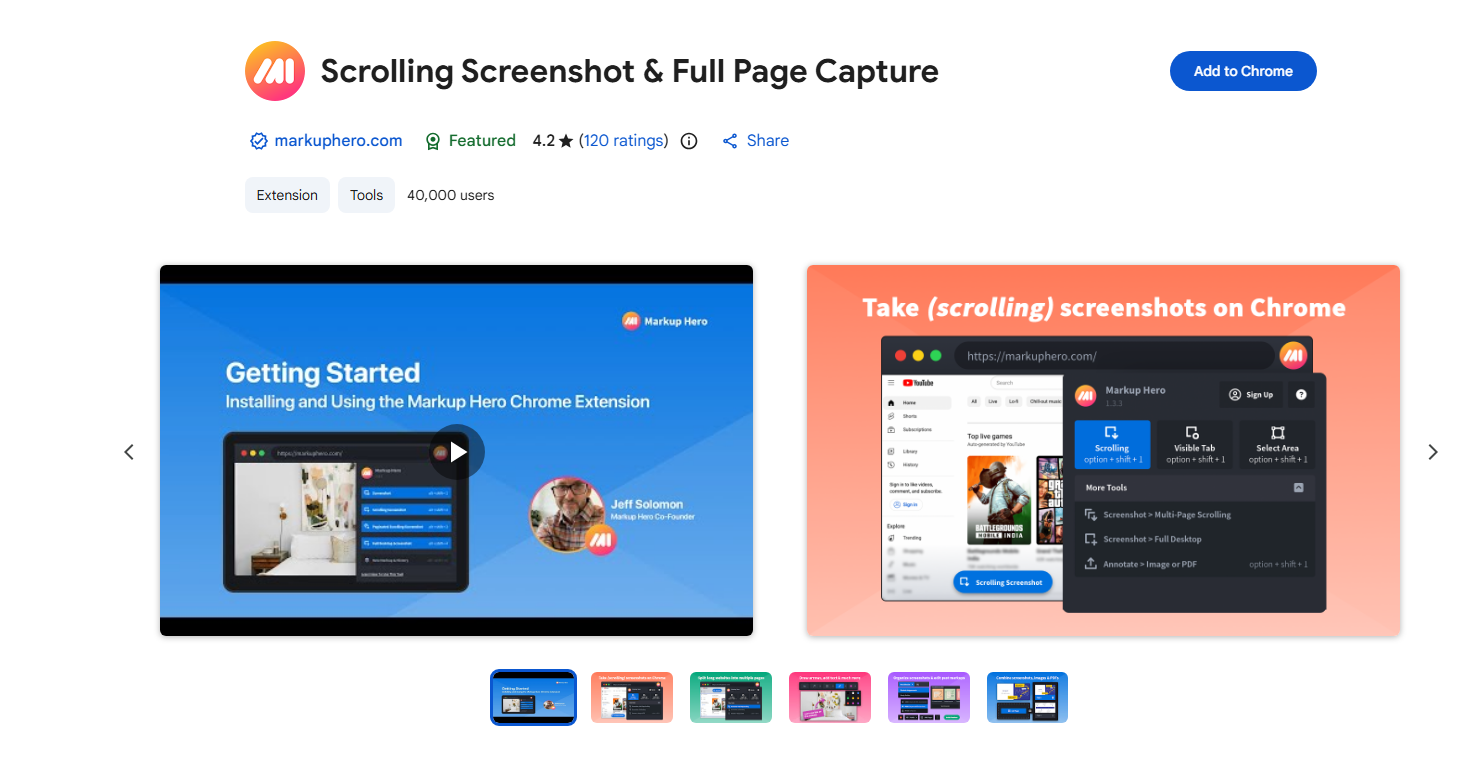
3.2 Scrolling Screenshot & Full Page Capture
This extension from Markup Hero captures scrolling web pages and offers a powerful annotation toolkit after capture — including arrows, text, cropping, and PDF export.
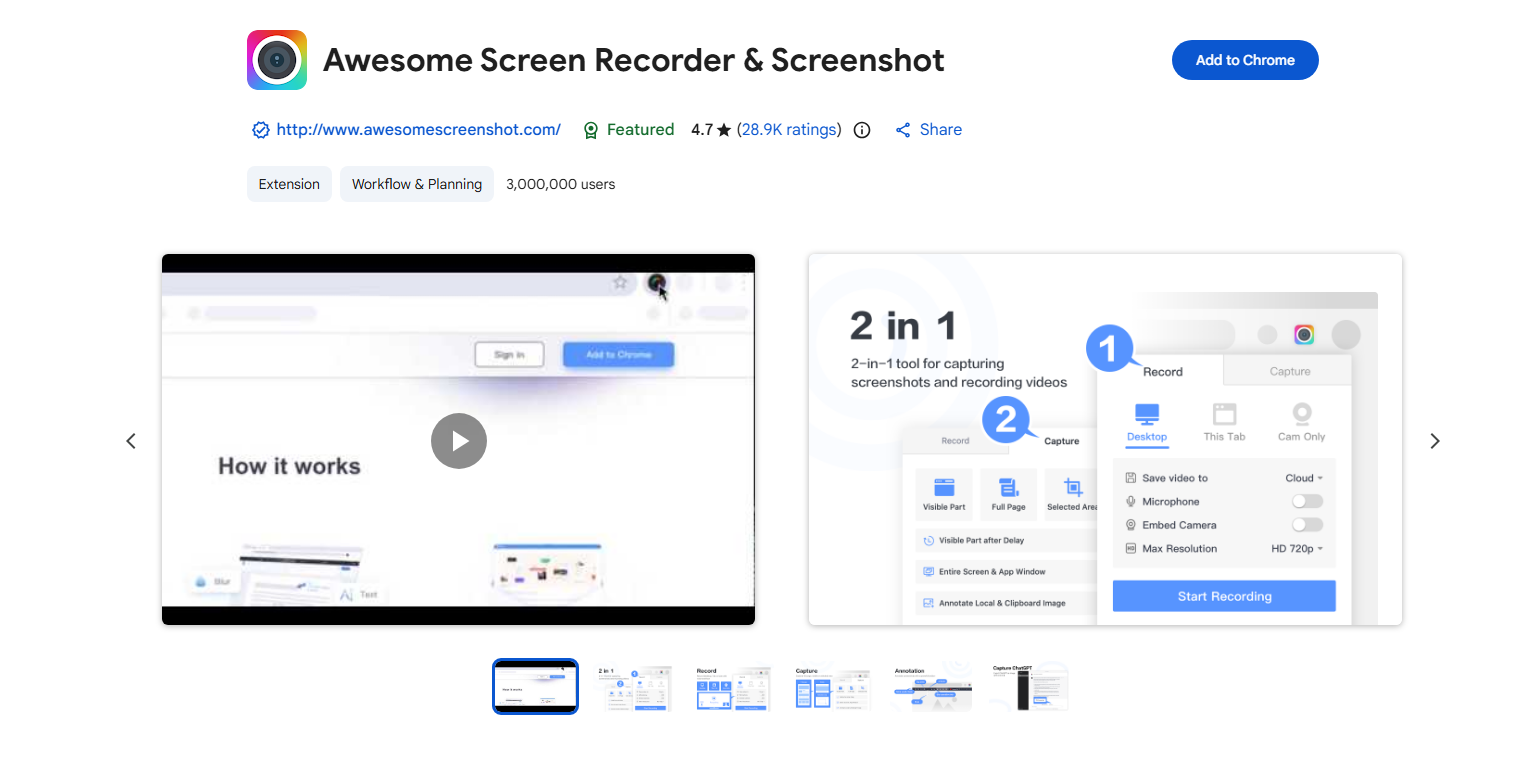
3.3 Awesome Screen Recorder & Screenshot
Awesome Screen Recorder & Screenshot provides long screenshot capture alongside other screenshot and screen recording abilities. It’s one of the more robust and longstanding tools in the Chrome ecosystem.
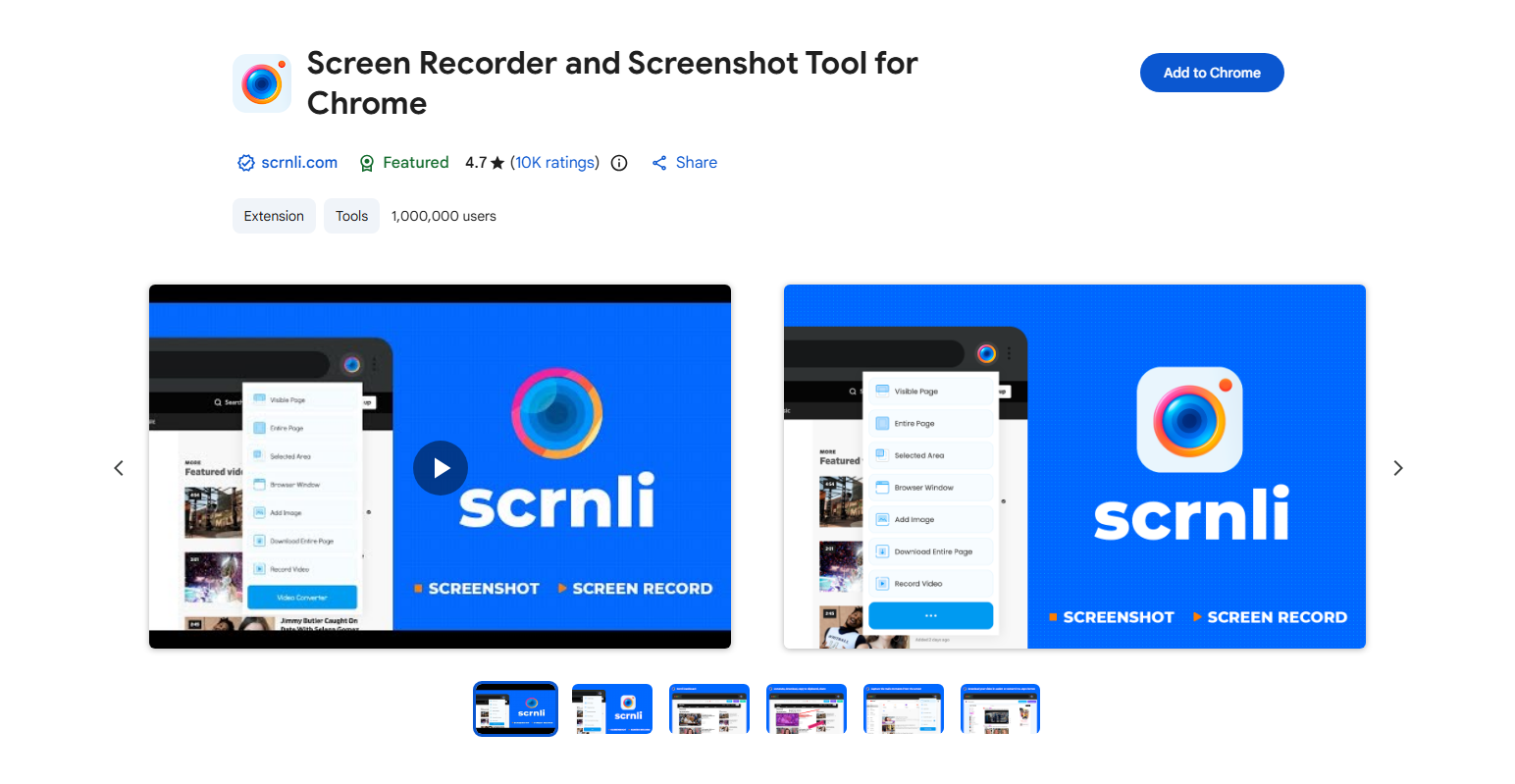
3.4 Screen Recorder and Screenshot Tool for Chrome
Scrnli also exists as a Chrome extension that captures full pages and scrolling content and includes editing and cloud integration options.
4. How to Resolve Scrolling Screen Capture iframe Issues?
Sometimes when you try to capture a web page that contains iframes — embedded content from another site — your scrolling capture tool doesn’t include that embedded area. That’s because iframe contents often come from a different source, and browser API restrictions prevent some tools from accessing them seamlessly.
Many screenshot APIs and extensions only capture the main document frame, not the embedded content from a separate domain or source. Browser security policies may block external iframe content from being stitched into the final screenshot.
How to fix or work around iframe issues:
- Open iframe content directly: If possible, open the embedded iframe content in its own tab before capturing.
- Use tools that handle scrolling components: Some tools like GoFullPage use advanced page capture logic that handles inner scrollable elements better.
- Developer tools workaround: In Chrome DevTools, capture separate frames or export the iframe content manually and stitch images yourself.
- Adjust page layout/CSS: Temporarily adjust overflow settings to make hidden content visible — this helps some capture tools.
5. How to Resolve Scrolling Screen Capture Stopped Issues?
Sometimes your scrolling screenshot stops prematurely or fails partway through. This can be due to dynamic content, conflicts with extensions, or limitations in the capture tool.
Common causes include dynamic web content that loads items on scroll (infinite scrolling), conflicting browser extensions that interfere with capture scripts, and unsupported or protected content such as certain apps or secured PDFs that block automated scrolling screenshots.
Troubleshooting tips:
- Update tools and browser: Ensure your capture tool/extension and browser are up to date.
- Disable conflicting extensions: Try turning off other browser extensions temporarily.
- Use incognito/private mode: This often disables other extensions to isolate issues.
- Try another browser: Some tools perform differently across Chrome, Firefox, or Edge.
- Adjust capture settings: Tools like Snagit offer alternative scroll modes or manual guidance.
6. Conclusion
Scrolling screen capture tools make it easy to capture long web pages, chats, documents, and code without manual stitching. Windows users can rely on tools like ShareX, Snagit, and PicPick, while macOS users have great options such as Snagit, Monosnap, Longshot, and ScrollSnap. For browser-based captures, Chrome extensions like GoFullPage, Awesome Screenshot, and Markup Hero quickly capture entire pages.
If issues arise—such as iframe content not being captured or scrolling stopping unexpectedly—simple fixes like opening iframe content directly, updating tools, or adjusting settings usually solve the problem. With the right tool and basic troubleshooting, you can capture full scrolling content smoothly and professionally.


