
How to Resolve madVR PotPlayer Black Screen?

PotPlayer is a popular Windows media player known for its flexibility, wide format support, and advanced playback controls. When paired with madVR, a high-quality video renderer designed for maximum image fidelity, users can enjoy superior video scaling, accurate color reproduction, and excellent HDR handling. This combination is especially favored by enthusiasts who watch high-resolution or high-bitrate content.
However, many users encounter a frustrating issue: PotPlayer plays audio normally, but the video window stays completely black when madVR is enabled. This problem can appear after updating graphics drivers, changing HDR settings, reinstalling PotPlayer, or switching GPUs. For less experienced users, the cause is often unclear because there are no error messages—just a blank screen.
This article explains what madVR PotPlayer is, lists the common reasons behind the black screen issue, and provides clear, step-by-step solutions to help you fix the problem and restore normal playback.
1. What Is madVR PotPlayer?
PotPlayer is a free Windows-based multimedia player known for its extensive support of video and audio formats. It offers extensive customization options, including multiple decoder choices, subtitle engines, and renderer configurations.
madVR (madshi Video Renderer) is a DirectShow video renderer focused on delivering the highest possible video quality. Unlike standard renderers such as EVR, madVR prioritizes:
- High-quality scaling algorithms
- Accurate color management
- Advanced HDR tone mapping
- GPU-based rendering for smooth playback
When madVR is selected as the video renderer inside PotPlayer, it replaces the default renderer and processes video output using your GPU. While this results in excellent visual quality, it also means madVR is more sensitive to system settings, driver compatibility, and configuration errors—making black screen issues more likely if something is misconfigured.
2. Why Does madVR PotPlayer Black Screen Occur?
Below are the most common causes, summarized in a short list:
- Outdated, incompatible, or corrupted GPU drivers
- Incorrect PotPlayer video renderer configuration
- Broken or misconfigured madVR settings
- HDR or color space conflicts
- Exclusive fullscreen mode compatibility issues
- Hardware acceleration conflicts (DXVA, CUDA, QuickSync)
- Missing or improperly installed madVR files
Any one of these issues—or a combination of them—can prevent madVR from displaying video while audio continues to play normally.
3. How to Resolve madVR PotPlayer Black Screen?
Follow the solutions below in order, starting with the easiest fixes.
3.1 Update or Reinstall Graphics Drivers
madVR relies heavily on GPU performance and driver stability. Even minor driver issues can cause rendering failures.
What to do:
- Identify whether you use NVIDIA, AMD, or Intel graphics.
- Get the latest driver from the official NVIDIA, AMD, or Intel website and perform a clean install whenever possible.
- Restart your system and test PotPlayer again.
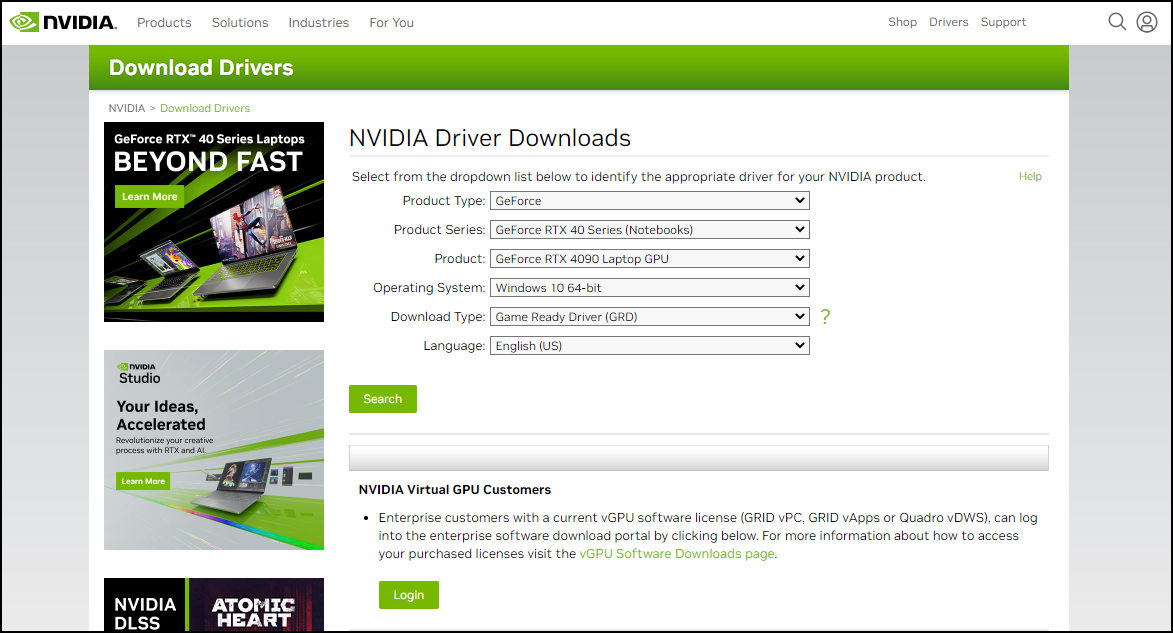
In many cases, simply updating the driver immediately fixes the black screen issue.
3.2 Reset madVR to Default Settings
Incorrect madVR configuration is a frequent cause of black screens, especially if you previously experimented with HDR or scaling options.
Steps:
- Open the madVR folder.
- Run
madHcCtrl.exe. - Right-click the madVR tray icon and open madVR settings.
- Reset some parameters, apply changes and restart PotPlayer.
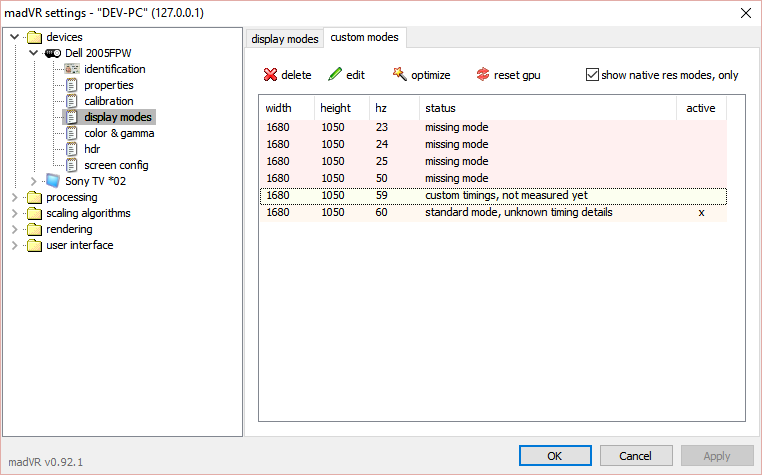
Resetting madVR removes conflicting custom settings that may block video output.
3.3 Confirm PotPlayer Is Using madVR Correctly
PotPlayer must be explicitly set to use madVR as the video renderer.
Steps:
- Open PotPlayer and press F5 to open Preferences.
- Go to Video → Video Renderer.
- Select madshi Video Renderer.
- Click Apply and restart PotPlayer.
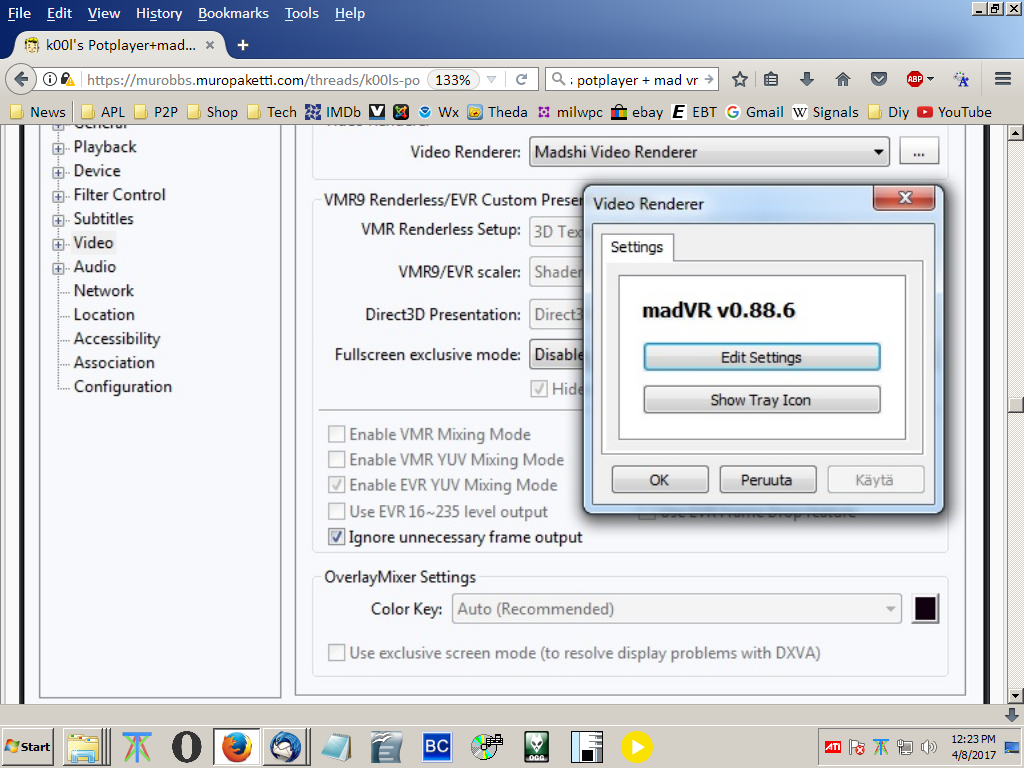
If video still shows a black screen, switch temporarily to EVR to confirm that madVR is the source of the problem.
3.4 Disable Exclusive Fullscreen Mode
madVR’s exclusive fullscreen mode can conflict with certain GPUs, Windows display settings, or multi-monitor setups.
Steps:
- Open madVR settings.
- Navigate to Rendering → General Settings.
- Disable automatic fullscreen exclusive mode.
- Apply changes and restart playback.
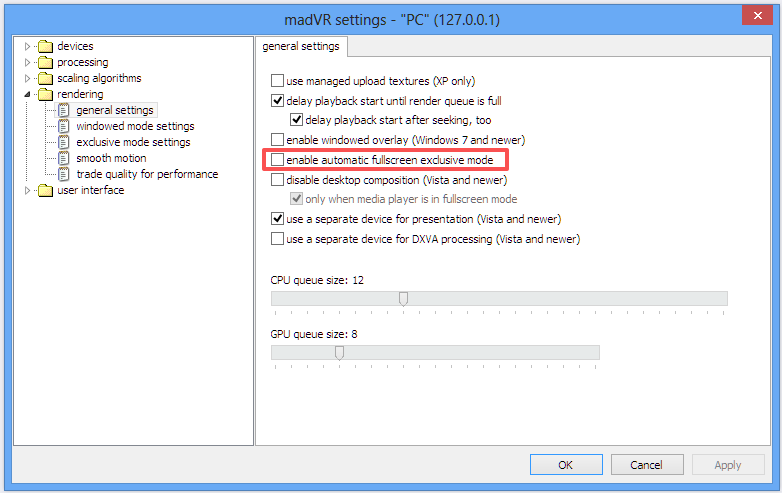
This fix is particularly effective on systems with multiple monitors or high refresh rate displays.
3.5 Fix HDR and Color Settings
HDR misconfiguration is one of the most common reasons madVR shows a black screen.
Recommended approach:
- Set HDR handling to “let madVR decide”
- Avoid forcing HDR passthrough unless your display fully supports it
- Use a supported bit depth (8-bit or 10-bit)
- Avoid unsupported color formats on older GPUs
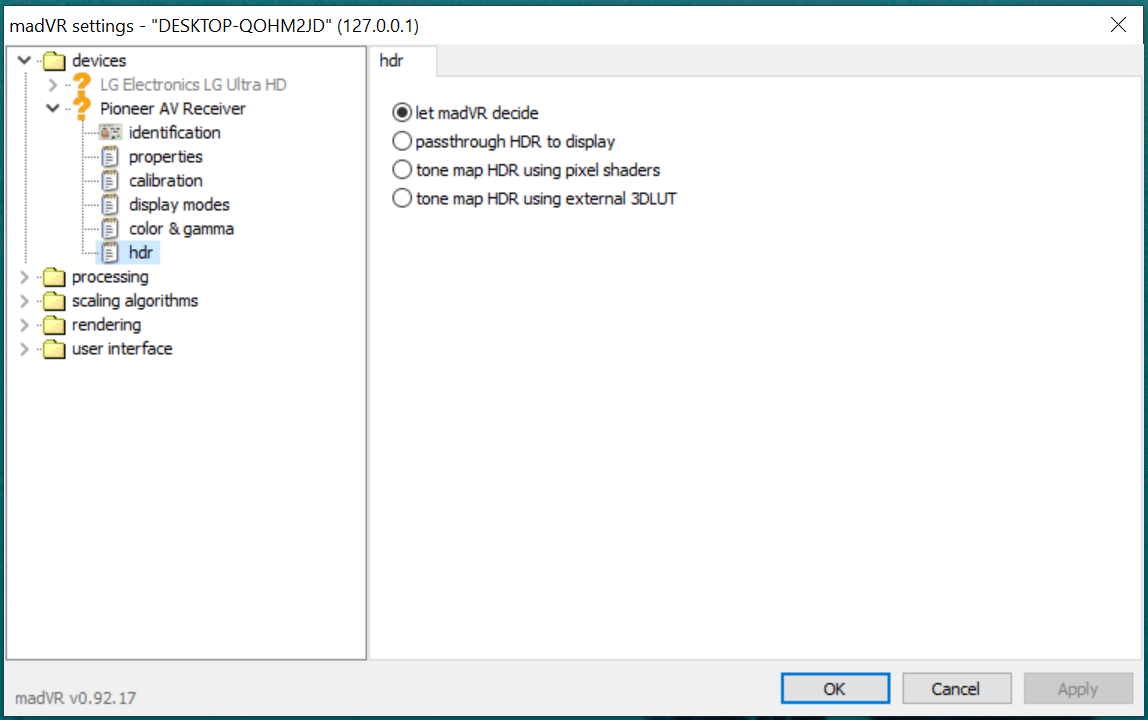
After making changes, restart PotPlayer to ensure settings take effect.
3.6 Adjust Hardware Acceleration Settings
Hardware decoding conflicts between PotPlayer and madVR can prevent video rendering.
Steps:
- Open PotPlayer Preferences (F5).
- Go to Filter Control → Video Decoder.
- Temporarily disable hardware acceleration options (DXVA, CUDA, QuickSync).
- Apply changes and test playback.
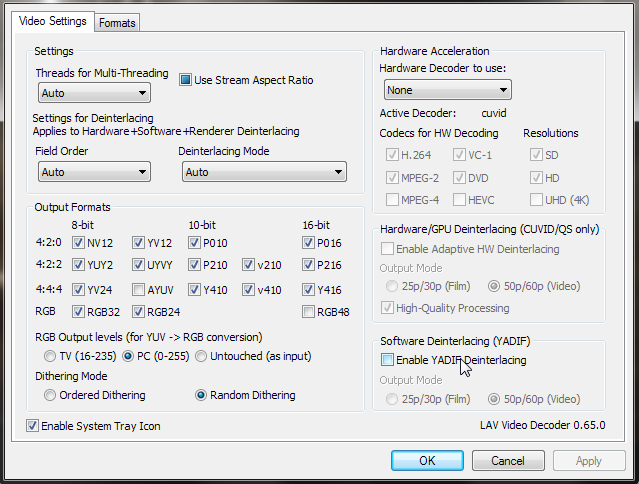
If video works, re-enable acceleration options one at a time to find a stable configuration.
3.7 Reinstall madVR Completely
If the black screen persists, madVR may not be installed correctly.
Steps:
- Delete the existing madVR folder.
- Download the latest madVR build.
- Extract it to a dedicated folder (not inside Program Files).
- Run
install.batas administrator. - Reconfigure PotPlayer to use madVR.
A clean reinstall ensures all required files and registry entries are properly set.
4. Conclusion
The madVR PotPlayer black screen issue is a common but solvable problem. In most cases, it is caused by driver issues, incorrect renderer settings, HDR conflicts, or hardware acceleration mismatches rather than a serious software failure.
By updating your GPU drivers, resetting madVR, properly configuring PotPlayer, and carefully adjusting HDR and hardware acceleration options, you can reliably restore video playback. Once everything is set up correctly, madVR and PotPlayer work together to deliver outstanding video quality, making the troubleshooting effort well worth it.


