
How to Post More Than 10 Photos on Instagram?

Instagram has evolved from a simple photo-sharing app into one of the most powerful social media platforms for creators, businesses, photographers, and everyday users. One of its most popular features is the carousel post, which allows users to share multiple photos or videos in a single post. However, Instagram currently limits carousel posts to 10 photos or videos at a time.
This limitation can be frustrating—especially for photographers showcasing an album, businesses promoting a product collection, travelers sharing a full journey, or creators telling a detailed visual story. Fortunately, there are several practical and creative ways to post more than 10 photos on Instagram, even with this restriction in place.
In this article, we’ll explain Instagram’s 10-photo limit and walk you through multiple methods to share more than 10 photos. By the end, you’ll know exactly how to share all your photos without sacrificing engagement or quality.
1. Combine Multiple Photos into One Image (Collages)
Another creative solution is to merge several photos into a single image, allowing you to fit more content into each carousel slot.
How it works:
- Use a collage or image-merging tool like Swyshare Imerger to combine 2–4 photos into one image.
- Upload these merged images to your carousel.
- Each carousel “photo” now contains multiple images.
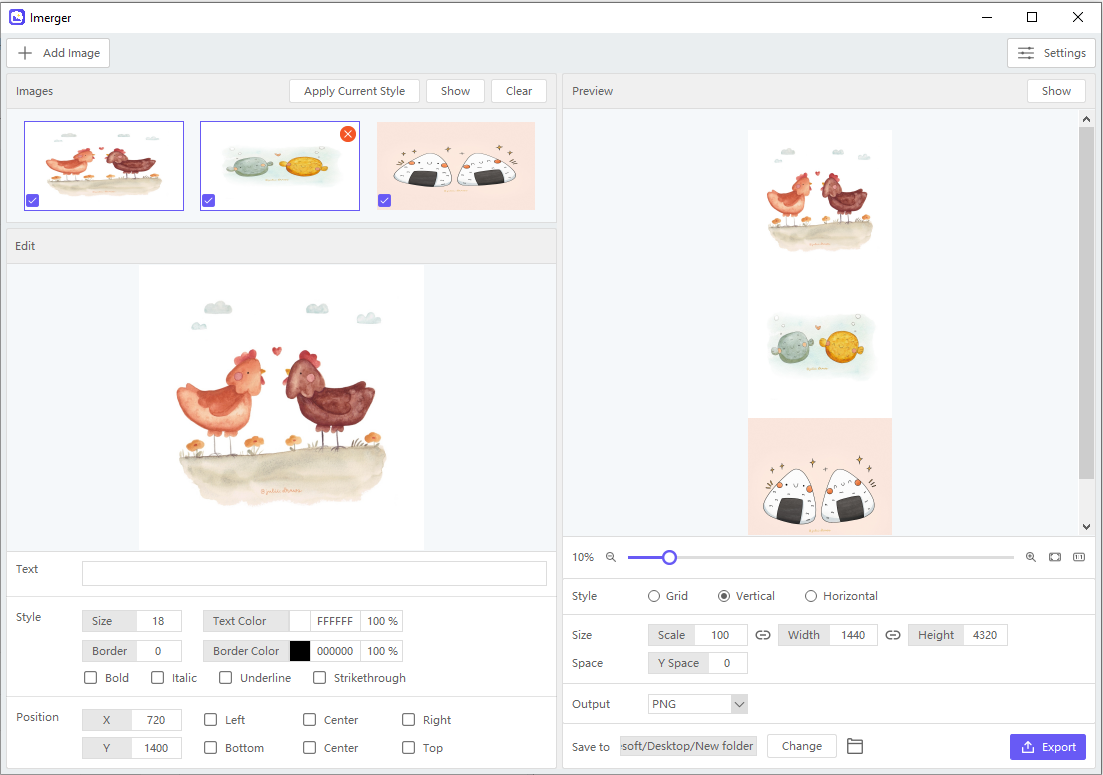
For example: 10 carousel slots × 3 photos per collage = 30 photos in one post
This approach is especially popular among:
- Fashion creators
- Product sellers
- Mood boards
- Photo dumps
Tip: Make sure the images remain clear and readable on mobile screens.
2. Use Multiple Carousel Posts (Part 1, Part 2 Method)
The most straightforward way to post more than 10 photos is to split them across multiple carousel posts.
How it works:
- Create your first carousel post with up to 10 photos.
- Publish it with a caption like “Photo dump (Part 1)”.
- Upload a second (or third) carousel with the remaining photos and label it “Part 2” or “Continued”.
Best practices:
- Maintain a consistent theme or color grading across all posts.
- Post them back-to-back so they appear together on your profile.
- Use captions to guide viewers to the next post.
This method is ideal for:
- Photo dumps
- Event highlights
- Product launches
- Travel galleries
Pros: Simple, native, no extra tools required
Cons: Photos are spread across multiple posts
3. Share Extra Photos Using Instagram Stories
Instagram Stories are one of the easiest ways to bypass the 10-photo limit.
How to do it:
- Upload your first 10 photos as a carousel post.
- Share the remaining photos as individual Stories.
- Use captions, stickers, or text to connect them to your main post.
You can also:
- Add a “New Post” sticker to direct viewers to your carousel.
- Save Stories as Highlights so they stay on your profile permanently.
Why this works:
Stories allow you to post dozens of photos at once, and Highlights turn them into long-term content collections.
Pros: Unlimited photos, interactive features
Cons: Stories disappear after 24 hours (unless saved as Highlights)
4. Create Instagram Highlights as Photo Albums
If you want a clean, organized way to show more than 10 photos on your profile, Instagram Highlights are an excellent option.
Steps:
- Upload your photos as Stories (you can add many at once).
- Go to your profile and tap New Highlight.
- Select the Stories and name the Highlight (e.g., “Trip to Japan” or “Wedding Shoot”).
Highlights essentially function as photo albums displayed below your bio.
This method works especially well for:
- Travel photography
- Portfolios
- Brand catalogs
- Event recaps
5. Post a Reel Using Photos
Instagram Reels aren’t just for videos—you can also create Reels using photos only.
How to do it:
- Select multiple photos when creating a Reel.
- Adjust timing, transitions, and music.
- Publish the Reel to your feed.
Reels allow you to include far more than 10 photos, and they often receive higher reach and engagement than standard posts.
This method is great for:
- Storytelling
- Before-and-after sequences
- Event recaps
- Brand promotions
6. Use the “Pin to Profile” Strategy
If you split your photos across multiple posts, you can pin them to the top of your profile so they stay visible together.
Steps:
- Upload multiple carousel posts.
- Open each post, tap the three dots, and select Pin to profile.
Pinned posts ensure your photo series stays front and center, even as you publish new content.
7. Share a Caption-Linked Series
For storytelling or professional content, you can create a caption-driven series.
Example:
- Post 1: “Photos 1–10: The preparation”
- Post 2: “Photos 11–20: The main event”
- Post 3: “Photos 21–30: Behind the scenes”
This keeps followers engaged and encourages them to swipe, scroll, and interact with multiple posts.
8. Conclusion
Although Instagram limits carousel posts to 10 photos, there’s no shortage of creative and practical ways to share more than that without compromising visual quality or engagement. From splitting content into multiple carousel posts and leveraging Stories, Highlights, and Reels, to pinning posts and creating caption-linked series, each method offers a flexible solution depending on your content goals.
Among all these approaches, combining multiple photos into a single image stands out as one of the most efficient and feed-friendly solutions. This is where Swyshare Imerger truly shines. With Imerger, you can easily merge multiple photos into clean, well-aligned collages, allowing you to fit far more content into each carousel slot. Whether you’re creating fashion lookbooks, product showcases, travel photo dumps, or mood boards, Imerger helps you present more visuals in a polished, professional way—without overwhelming your audience.
In short, if you want to post more than 10 photos on Instagram while keeping your feed organized, visually appealing, and easy to browse, using Imerger alongside Instagram’s native features is the smartest solution. It turns Instagram’s limitations into an opportunity to tell richer stories and showcase more of what matters—one post at a time.


