
How to Convert JPG to Excel?

JPG images are commonly used to store visual information such as scanned documents, photographed invoices, receipts, tables, and screenshots of reports. While this format is excellent for viewing and sharing, it becomes limiting when the information inside the image needs to be edited, calculated, or analyzed. An image file cannot be sorted, filtered, or used in formulas, which is why many users look for ways to convert JPG files into Excel spreadsheets.
Converting JPG to Excel allows you to transform image-based data into structured rows and columns that can be edited and processed. Thanks to Optical Character Recognition (OCR) technology, it is now possible to extract text and numbers from images with high accuracy. Whether you are a student, accountant, data analyst, or business professional, learning how to convert JPG to Excel can save time and improve productivity. This article explains why this conversion is necessary and walks you through several practical methods to do it.
1. Why Need to Convert JPG to Excel?
- Make image-based data editable and reusable
- Eliminate time-consuming manual data entry
- Enable calculations, formulas, and data analysis
- Improve data organization and record management
- Support accounting, reporting, and business workflows
2. How to Convert JPG to Excel?
There are multiple ways to convert JPG images to Excel, and the best method depends on how often you need to perform the conversion, the complexity of the data, and your accuracy requirements.
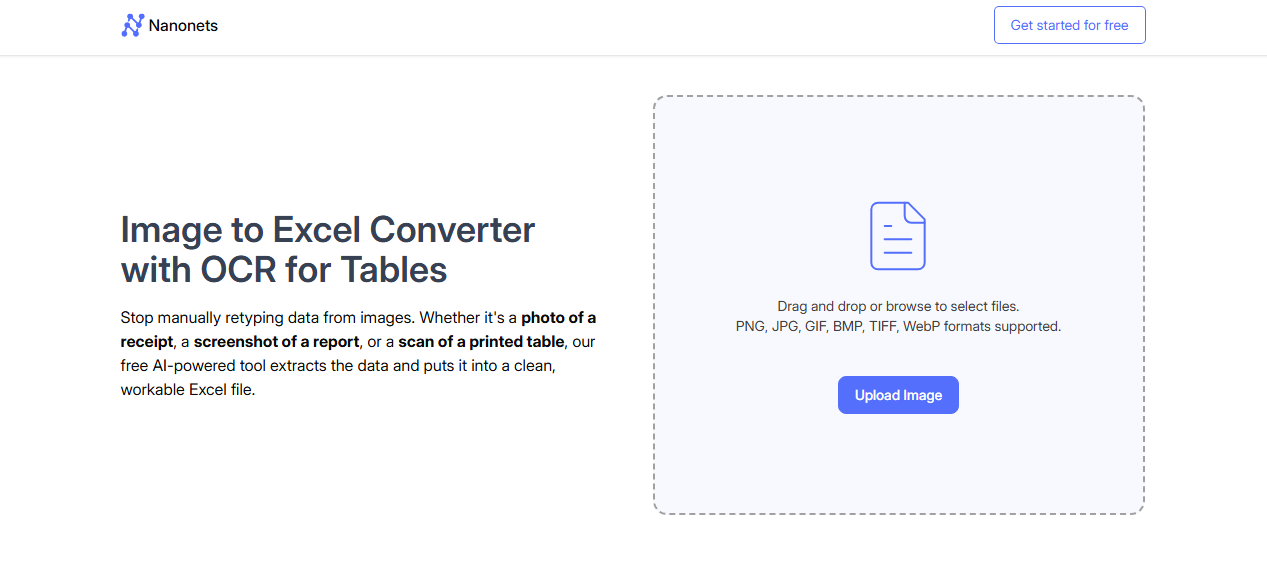
Method 1: Convert JPG to Excel Using Online OCR Converters
Online JPG to Excel converters are one of the easiest and fastest solutions, especially for occasional use.
Steps:
- Open a JPG to Excel OCR converter in your web browser.
- Upload the JPG image containing the table or data.
- Choose Excel (XLS or XLSX) as the desired output format.
- Start the conversion process and download the converted Excel file to your device.
Advantages:
- No software installation required
- Simple and beginner-friendly
- Accessible from any operating system
Limitations:
- File size or daily usage limits
- Requires an internet connection
- Not ideal for sensitive or confidential data
Online tools work best for small files and simple tables.
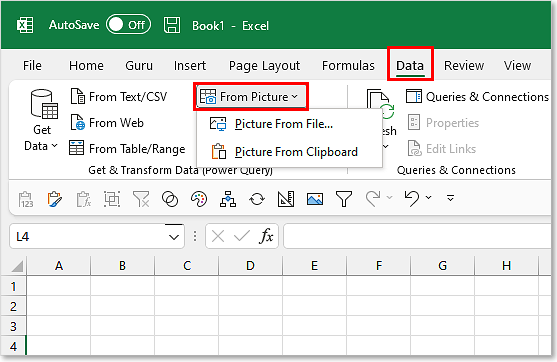
Method 2: Convert JPG to Excel Using Microsoft Excel
Microsoft Excel includes a built-in feature that allows users to extract data directly from images.
Steps:
- Open Microsoft Excel on your computer, then go to the Data tab and select From Picture.
- Choose Picture From File and upload your JPG image, then Excel analyzes the image and extracts the data.
- Review and correct any recognition errors.
- Insert the data into the worksheet.
Advantages:
- No third-party software needed
- Good accuracy for clean tables
- Secure, offline processing
Limitations:
- Works best with clear, well-aligned tables
- May struggle with complex layouts or handwriting
This method is ideal if you already use Excel and want a reliable, built-in solution.
Method 3: Convert JPG to Excel Using Desktop OCR Software
Professional OCR software provides more advanced features and higher accuracy, especially for frequent or large-scale conversions.
Steps:
- Install a desktop OCR or image-to-Excel conversion tool.
- Import one or multiple JPG files.
- Select Excel as the output format.
- Configure OCR language and layout settings if needed.
- Convert the images and save the Excel files.
Advantages:
- High recognition accuracy
- Supports batch conversion
- Works offline
Limitations:
- Often requires a paid license
- Takes time to install and configure
Desktop OCR tools are best suited for businesses and professionals who process large numbers of images regularly.
Method 4: Convert JPG to Excel Using Mobile OCR Apps
Mobile OCR apps are convenient when images are captured directly from a smartphone.
Steps:
- Install an OCR scanning app on your mobile device.
- Take a photo of the document or upload an existing JPG image.
- Enable OCR and choose Excel as the export format.
- Export or share the Excel file.
Advantages:
- Convenient for on-the-go scanning
- Fast conversion from camera images
Limitations:
- Lower accuracy for complex tables
- Limited editing and export options
This method works well for simple documents like receipts or basic tables.
3. Tips to Improve JPG to Excel Conversion Accuracy
- Use high-resolution images with clear text
- Ensure good lighting and minimal shadows
- Keep the image straight and well-cropped
- Avoid decorative fonts or handwritten text
- Always review and correct OCR results
Applying these tips can significantly improve the quality of the final Excel file.
4. Conclusion
Converting JPG to Excel is a practical solution for turning image-based information into editable, structured data. Whether you want to save time, reduce manual errors, or take advantage of Excel’s powerful analysis tools, JPG-to-Excel conversion helps streamline your workflow.
With multiple options available—online OCR tools, Microsoft Excel’s built-in image import feature, professional desktop software, and mobile apps—you can choose the method that best fits your needs. By using clear images and reviewing OCR results carefully, you can achieve accurate conversions and make the most of your data in Excel.


